Portable document format files, or PDFs, use the .pdf extension, and were developed by Adobe as a sort of universal format. Using Adobe Acrobat, you can create PDF documents with editable fields, secure PDFs and more. Others can read these documents using the free Adobe Acrobat Reader. You can also package PDF documents in a group or portfolio for digital delivery. Adobe Acrobat 9 has a special interface for creating and viewing PDF packages.
Step 1
Place the PDF files you would like to package together in a folder on your desktop for easy location.
Video of the Day
Step 2
Open Adobe Acrobat 9 Pro.
Step 3

Click "Combine" in the toolbar at the top. See the image here for reference. Select "Assemble PDF Portfolio" from the drop-down menu.
Step 4
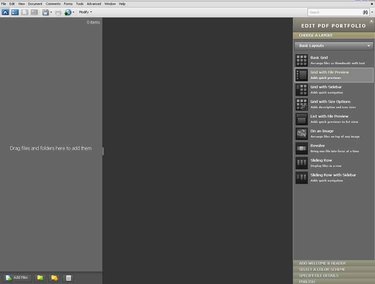
Select "Grid With File Preview" from the side menu on the right when the Acrobat PDF portfolio window opens.
Step 5
Click "Add Files" at the bottom of the left-hand menu bar and select "Desktop" on the left side of the open file window.
Step 6
Open the folder you created for the PDFs. Select each PDF you want in the package by holding down CTRL and clicking each one once. Click "Open" in the bottom right of the window.
Step 7
Click "File" on the left in the top menu bar and select "Save Portfolio" from the drop-down menu.
Step 8
Type in a name for your PDF package where it says "File Name" in the save window, and click "Save." This will save your PDF package in the same folder as the original PDFs.
Video of the Day