

17X13 Kitchen Ideas

A kitchen measuring 17 by 13 feet is more than big enough for everything a person needs. Efficient and sensible design can provide a space of this size with accessible appliances and cabinets, with sufficient room in between for easy traffic flow. Add high-quality appliances to your kitchen and avoid unnecessary extras, and you will create a room that is both efficient and beautiful.
Sinks
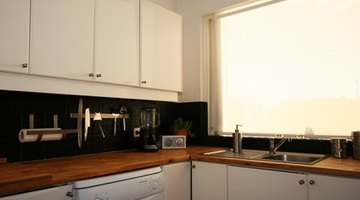
A dual cast-iron sink placed in front of a window can create a heritage look and a light-filled spot for cleaning vegetables or washing dishes. If you are looking for a more contemporary feel, a brushed nickle or stainless steel sink, combined with a modern faucet, can bring your sink into the 21st century. Sinks should be installed with adequate counter space on both sides of them so that things don't get crowded when you are preparing or cleaning up after dinner.
Center Island
A kitchen that is 17 by 13 feet is large enough to incorporate a center island. This design has numerous advantages, including increased vertical area for drawers and cabinets, and increased linear counter feet, which provides more space for work areas. A center island also provides a space to install an overhead rack to hang pots, pans and frequently used utensils. A rack of this type not only gives the kitchen visual interest and a homey feel, it saves you the hassle of constant cupboard opening and shutting when reaching for the things that you use all the time.
Doorways
If your 17-by-13-foot kitchen is positioned well with the rest of the house, you can include entryways at both ends of the kitchen. This design provides more choices and opportunities for traffic flow, and makes it easier to access other parts of the house. Be careful not to design the kitchen so that it becomes a hallway between two other frequently used points, or you will have a constant parade of people going through the kitchen.
Built-In Refrigerator
If you are looking for ways to free up floor space within the kitchen, a built-in refrigerator is one way to do this. If you have a closet in another room that backs up to the kitchen, you can close that closet off from the other direction, open up the wall into the kitchen, and install the refrigerator in the space. This leaves you with a refrigerator that is flush to the kitchen wall at the front, and is accessible but not using up valuable kitchen floor space.
References
Writer Bio
Jagg Xaxx has been writing since 1983. His primary areas of writing include surrealism, Buddhist iconography and environmental issues. Xaxx worked as a cabinetmaker for 12 years, as well as building and renovating several houses. Xaxx holds a Doctor of Philosophy in art history from the University of Manchester in the U.K.
Photo Credits
- le kitchen image by sumos from Fotolia.com
More Articles

