A blank HTML page is a Web page with no visible Web content. Some HTML code is necessary for a Web browser to interpret the file as an HTML file even if there is no visible content. Any text editor can create a blank HTML page because an HTML page is simply a text document with special codes at the top that identify it as a Web page to Web browsers.
Step 1
Open the text editor application. The Windows Notepad application is located in the directory C:\Windows\System32.
Video of the Day
Step 2
Type the HTML codes that define a text document as a Web page: <HTML><TITLE>My Title</TITLE><BODY></BODY></HTML>
Step 3
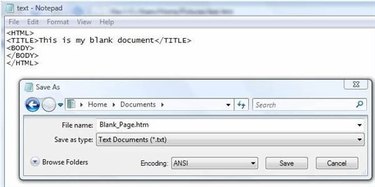
Click the File menu and select "Save As." By default, Notepad wants to save all files as plain text with .TXT as the extension. For an HTML file, enter a file name with the .HTM extension.
Step 4
Click the "Save" button and you will now have a blank HTML page.
Step 5
Open Microsoft Word to a new document.
Step 6
Leave the page blank if you want a blank HTML page. Otherwise, type to add text content or use the "Insert" menu to add pictures.
Step 7
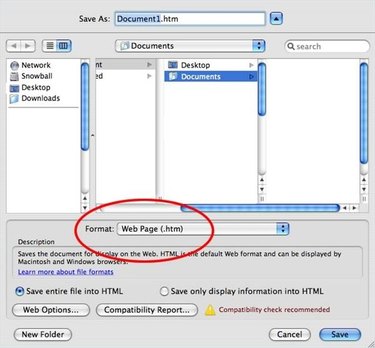
Click the "File" menu (or Office menu in Word 2007) and select "Save As." Then choose "Web Page" (HTML) as the file format to save the document in.
Step 8
Enter a name for your document. The extension should be .html or .htm. Click "Save" and you will have an HTML document.
Step 9
Open Dreamweaver and click "HTML" under the "Create New" column on the start-up page.
Step 10
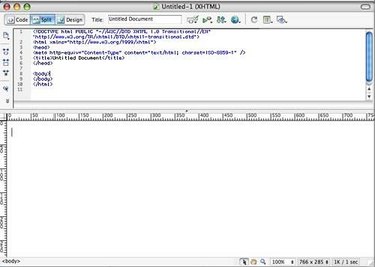
Leave the page blank if you want to have a blank HTML page or type text to have text on your Web page.
Step 11
Click the "File" menu and choose "Save" to save the HTML Web page.
Video of the Day