eHow launches Android app: Get the best of eHow on the go.

How To

How to Make an Organizational Chart in Excel

Contributor
By Catherine Chant
eHow Contributing Writer
(4 Ratings)
Organizational Chart in Excel
Catherine Chant

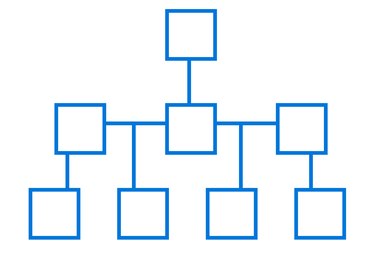
An organizational chart shows the hierarchy of a company or a project. Each level in the hierarchy is represented by a row of boxes. The levels are stacked one on top of the other like a pyramid. Lines between the levels show relationships between the groups represented by the individual boxes. Excel can create organizational charts through the use of SmartArt hierarchy diagrams or in the case of older versions of Excel, the Microsoft Organization Chart utility.

Difficulty: Easy
Instructions

    Excel 2007 and 2008

  1. Step 1

    Open Excel to a new workbook.

  2. Step 2
    SmartArt Button
     
    SmartArt Button

    Click the "SmartArt Graphics" button in the Element Gallery at the top of the screen (Excel 2008) OR click the "Insert" tab, then "Illustrations" panel, then "SmartArt" button (Excel 2007).

  3. Step 3
    Chart Style Button
     
    Chart Style Button

    Click the "Hierarchy group"; then choose an Organizational Chart layout. A template for the chart will appear on the worksheet.

  4. Step 4
    Text Pane and Chart Template
     
    Text Pane and Chart Template

    Click and type in the floating Text Pane window to enter labels for the boxes. In Excel 2007, if the Text Pane doesn't display automatically, click the "Text Pane" button in the upper left of the toolbar.

  5. Step 5
    Text Pane Window
     
    Text Pane Window

    Click a text label in the Text Pane to select a particular box; then use the "Promote" and "Demote" buttons at the top of the Text Pane to move a box up or down a level. NOTE: In Excel 2007, the buttons mentioned in Steps 5 through 7 are located in the SmartArt Create Graphic panel in the upper right of the screen, not in the Text Pane window.

  6. Step 6

    Click on a text label in the Text Pane to select a box and use the + and -- buttons at the top of the Text Pane to add an adjacent box or delete the selected box.

  7. Step 7
    Format Chart Colors
     
    Format Chart Colors

    Click a text label in the Text Pane to select a box and use the Formatting Palette (Excel 2008) or the SmartArt Design tab (Excel 2007) to change the box or text color.

  8. Step 8

    Click the Text Pane icon on the left of the organization chart outline to close the Text Pane or reopen it. When the Text Pane is closed, click the boxes on the chart to select them to apply format changes.

  9. Step 9

    Click the "File" menu (Excel 2008) or the "Office" menu (Excel 2007), then "Save" to save the chart.

  10. Older Versions of Excel

  11. Step 1

    Open Excel to a new workbook.

  12. Step 2
    Insert Object Dialog Box
     
    Insert Object Dialog Box

    Click the "Insert" menu, then "Object," and choose Microsoft Organization Chart. This will open a separate utility called "Organization Chart" that helps you design your chart.

  13. Step 3
    Microsoft Organization Chart Window
     
    Microsoft Organization Chart Window

    Click in the chart boxes to add names and titles.

  14. Step 4
    Chart Template Edited
     
    Chart Template Edited

    Use the buttons at the top of the screen to add more boxes or levels to the chart. When you click a button, click an existing box on the chart that you want the new object to be adjacent to in order to add the item to the chart.

  15. Step 5

    Click the black arrow tool in the upper left; then click a box and press "Delete" to remove a box from the chart.

  16. Step 6

    Click the "File" menu and then "Update and Return to Object" when the chart is finished. The chart program will then close, and the chart object will be added to the worksheet.

  17. Step 7
    Organization Chart Added to Worksheet
     
    Organization Chart Added to Worksheet

    Click the "File" menu, then "Save," to save the chart in the workbook.

Tips & Warnings
  • Microsoft Organizational Chart was installed with older versions of Excel to facilitate the creation of organizational charts. It is still available to download from Microsoft for use with later versions of Excel, but it is no longer necessary since SmartArt Graphics was added to the later versions.
Subscribe

Post a Comment

Post a Comment

Related Ads

  • Have you done this? Click here to let us know.
I Did This
Get Free Computers Newsletters

Copyright © 1999-2010 eHow, Inc. Use of this web site constitutes acceptance of the eHow Terms of Use and Privacy Policy .   en-US Portions of this page are modifications based on work created and shared by Google and used according to terms described in the Creative Commons 3.0 Attribution License. † requires javascript

eHow Computers
eHow_eHow Technology and Electronics