If you can't run Java applets in Opera for Windows, the plugin may not be installed on your system or it may have been disabled by another user. You can download and install Java from the official website and then enable it in Opera. By default, Opera cannot run Java applets.
Verify the Java Plugin
Step 1
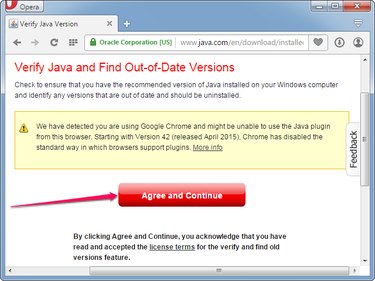
Open Opera and visit the Verify Your Java Version page and click the Agree And Continue button to see if Java is installed on your computer.
Video of the Day
Step 2
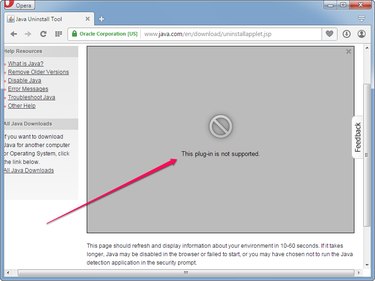
Wait for the page to display your Java version and other details. If you still see the This Plug-in Is Not Supported error after one minute, Java is not installed on your system or is not working.
Step 3
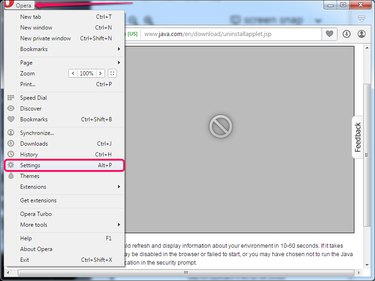
Click the Opera button and select Settings from the menu to open the Opera Settings page. Alternatively, press Alt-P to open the page.
Step 4
Select the Websites tab from the left pane and then click the Run All Plug-in Content (Recommended) button in the Plug-ins section. Click Manage Individual Plug-ins to view all plugins installed in Opera.
Step 5
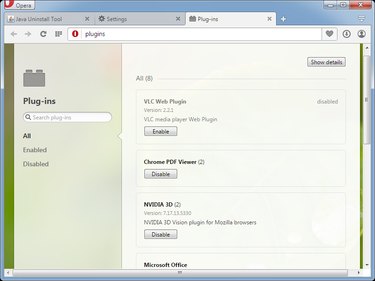
Search for Java in the list of plugins. If Java is not present, the Java Runtime Environment is not installed on your system and Java applets cannot run.
If the Java plugin is installed, click the Enable button to enable it. As long as the Java plugin is disabled, Java applets don't work.
Installing Java in Opera
Step 1
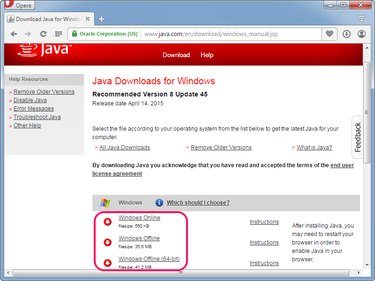
Open the Java Downloads For Windows page and then click one of the installers in the Windows section. Save the installer on your hard drive.
Step 2
Close the Opera browser and then double-click the installer to launch the setup wizard. Click the Install button to install the Java Runtime Environment on your computer. Click Close after the setup is complete.
Step 3
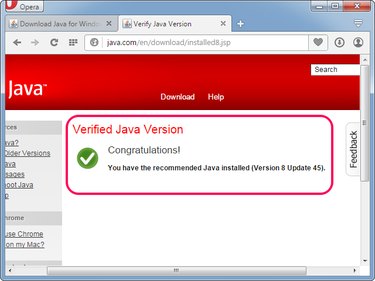
Open Opera and then visit the Verify Your Java Version page. Click Run if Opera prompts you to give access to the Java Detection application.
If you see the Verified Java Version message, Java is installed and working on your system; Opera is able to run all kinds of Java applets.
Video of the Day