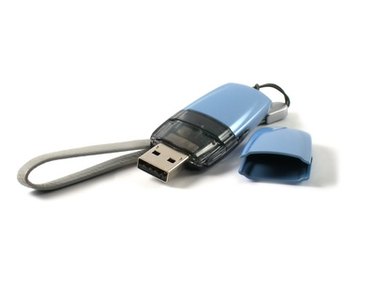
Outlook is an email software program included in the Microsoft Office package. With Outlook, you can receive and send emails, use the calendar to track important appointments and keep a to-do list. Outlook also allows you to export important mail messages and save them to a USB flash drive. Once the information is on a flash drive, you can transfer the messages to a different computer or keep them as a backup.
Step 1
Open Outlook.
Video of the Day
Step 2
Select the "File" menu then select "Import and Export."
Step 3
Select "Export to a file." Click "Next."
Step 4
Select "Personal Folder File (.pst)" from the list and click "Next."
Step 5
Highlight the message folder you want to export. Check the "Include Subfolders" box if you wish to export messages from the subfolders. Click "Next."
Step 6
Select "Browse" in the "Save exported file as" pop-up. Type a file name in the file text box.
Step 7
Choose the USB flash drive as the save location and click "Save."
Step 8
Select "Finish."
Video of the Day