Windows Installer popups may be caused by Windows configuration issues, by Windows Update prompting you to install updates or by malware. To stop them, regularly run anti-malware software, stop Windows Update from prompting you to install updates by setting it to automatically install them in the background or to install updates only when you tell it to do so.
Configuring Windows Update
Video of the Day
In Windows 7 or 8.1, Windows Update configuration is found in the Control Panel.
Video of the Day
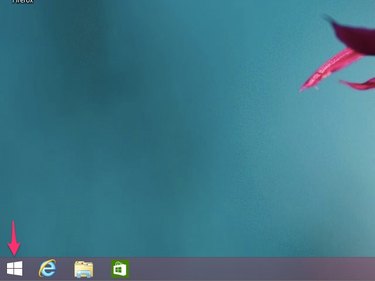
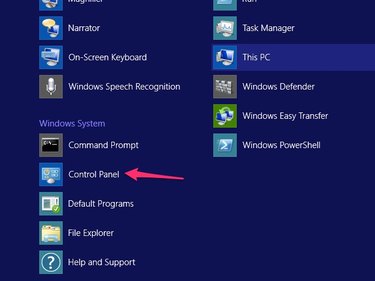
Step 3
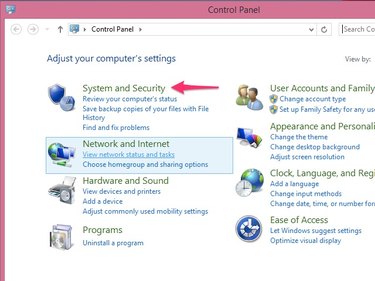
Within the Control Panel, click System and Security.
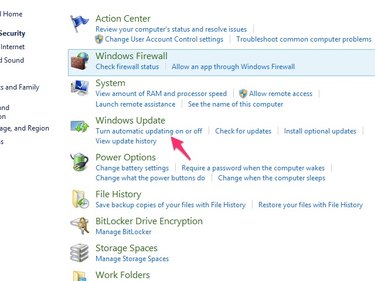
Step 5
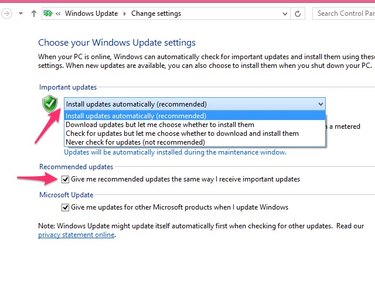
To configure Windows Update to automatically install updates without asking, set the Important Updates selector to Install Updates Automatically. To set it to install updates only when you explicitly request an update check, set it to Never Check for Updates and return to this menu when you want to explicitly tell Windows to check for updates.
Check the Recommended Updates box to apply the same settings to non-critical updates recommended by Microsoft, as well as important updates that fix security and reliability issues.