How to Install Windows Updates Manually

Windows Updates are critical for users of Windows operating systems. They often contain important fixes for bugs and remedy system problems. Microsoft is constantly working on improvements for its operating systems, and generally Windows users set their systems to receive automatic updates. However, some users like to be more in control of what's being added to their computers, or don't always use their computers to connect to the Internet. In these cases, it is necessary to manually install Windows updates.

Instructions

    • 1

      Go to the Windows Update site. Open Internet Explorer, and go to Tools\Windows Update. Alternately, you can type in the URL (see Resources). You must use Internet Explorer; using other browsers will result in an error message.

    • 2
      Clickable link to the Windows Update Catalog

      Click on "Use administrator options" in the left-hand menu. Once at the Administrator Options screen, choose to search the Windows Update catalog under "Update multiple operating systems."

    • 3

      Install the Active X control if requested. On the Microsoft Update Catalog screen type in the OS you want updates for in the search box (e.g., Vista or XP).

    • 4
      Adding updates to the basket

      Click "Add" next to each update you wish to install. The updates will be added to your basket.

    • 5
      Status of downloaded updates

      Click "View basket" in the upper-right-hand corner of the screen when you are done selecting your updates. Make sure everything you want is there, then click "Download." In the "Download Options" pop-up box that appears, choose where you want to download the files. A progress bar will show the status of the downloads.

    • 6

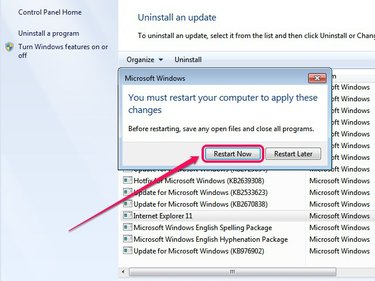
      Go to the location where you downloaded the files. Double-click the files to install. You will probably be asked to restart your computer after the installation is complete.

    • 7

      To download the updates for use on a different computer, one that is not connected to the Internet, for example, save the files to storage media such as a USB drive or disk, and load the media onto the computer. Double-click the files and install just as you would if you'd downloaded them.

Tips & Warnings

  • If you are not sure which updates need to be installed, go through the automatic update progress (from Internet Explorer, or from the Start menu in Vista) and get a list of recommended updates. Take a screenshot or write down the names of the most critical updates.

Related Searches:

Resources

Comments

You May Also Like

Related Ads

Featured