techwalla
Shop
Gift Guides
Tech Toys
Tech on a budget
All Shop
Smart Life
Gadgets
Cool Apps
Travel
Smartphones
All Smart Life
Technically for parents
Education
Online Safety
All Technically for parents
Tech Support
How to
Reviews
All Tech Support
Entertainment
What’s streaming
Social Life
All Entertainment
CONNECT WITH US
JOIN OUR NEWSLETTER
Get the latest news and alerts!
Later
Notify
How To
How to Send a Text With a Different Number
Steven Melendez
Advertisement
featured
By
Jill Layton
How to Share Your Screen on FaceTime
Tech Support
By
Jill Layton
How to Transform Your Child's Artwork Into a Book so You Can Toss the Clutter
Tech Support
By
Jill Layton
How to Reactivate Your Instagram Account
Tech Support
By
Jill Layton
How to Screen Record on Your iPhone
Tech Support
By
Jill Layton
Everything Coming to Max in December 2023
Entertainment
latest
By
Jill Layton
Amazon's Best Cyber Monday Deals on Kids' Stocking Stuffers
Shop
By
Jill Layton
Everything Coming to Netflix in December 2023
Entertainment
By
Jill Layton
Holiday Gift Guide 2023: Gifts You'll Also Want for Yourself
Shop
By
Jill Layton
How to Sign up for a Walmart+ Free Trial for Black Friday Deals Access
Shop
By
Jill Layton
The Coziest Holiday Pajamas for the Whole Family
Shop
By
Jill Layton
New to Disney+ in December 2023
Entertainment
By
Jill Layton
New to Amazon Prime Video in December 2023
Entertainment
By
Jill Layton
Everything Coming to Hulu in December 2023
Entertainment
By
Jill Layton
Holiday Gift Ideas Your Kids Will Actually Love in 2023
Shop
By
Jill Layton
Yuka App Scans Food & Cosmetic Barcodes to Help You Make Informed Choices
Smart Life
By
Jill Layton
Xbox Is Giving Away an Edible Controller Along With an Xbox Series X
Shop
By
Jill Layton
Your Inactive Gmail Account Will Soon Be Deleted
Smart Life
By
Jill Layton
Watch the New Trailer for 'Inside Out 2'
Entertainment
By
Jill Layton
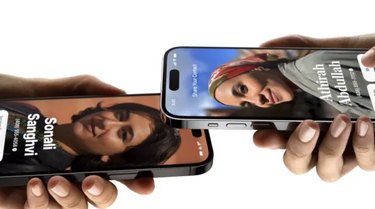
How to Share Your Number by Tapping iPhones Together
Tech Support
By
Jill Layton
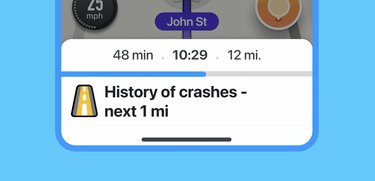
Waze Will Now Warn Drivers of Crash-Prone Roads
Smart Life
By
Jill Layton
5 Ways to Celebrate National STEAM Day 2023
Technically for Parents
By
Jill Layton
An Explantation of Grok, Elon Musk's New AI Chatbot
Smart Life
By
Jill Layton
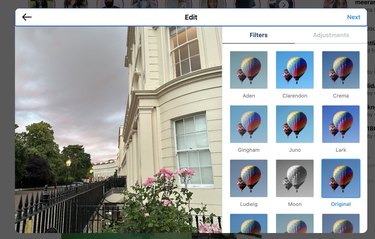
How to Post to Instagram From Your Computer
Tech Support
By
Jill Layton
YouTube Is Limiting Teens' Repeated Viewing of Certain Topics
Technically for Parents
By
Jill Layton
The More Netflix You Watch, the Less Ads You'll See
Entertainment
By
Jill Layton
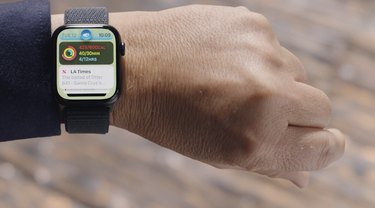
Apple Watch Series 9 Finally Gets the Double Tap Feature
Smart Life
By
Jill Layton
New to Netflix in November 2023
Entertainment
By
Jill Layton
A TikTok Music Festival Is Happening
Entertainment
By
Jill Layton
New to Amazon Prime Video in November 2023
Entertainment
Report an Issue
Contact*:
Severity*:
High
Normal
Low
Description*:
Screenshot loading...
Cancel
Submit