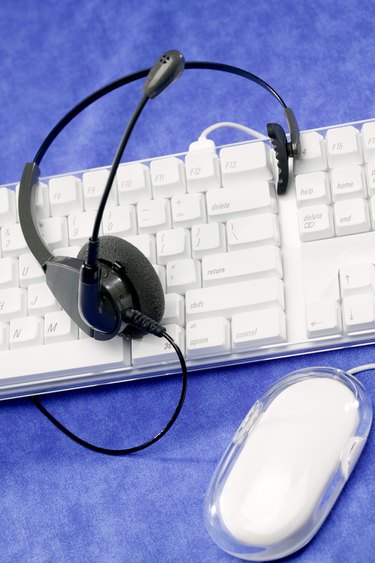
How to Record Your Voice on Windows XP

Whether you are doing it to add some dimension to your desktop or to sing along with your favorite song or vocalist, recording your voice on your PC computer is easy. With a little bit of information, some inexpensive hardware and some patience, you can record your voice on your computer in no time, and even share that file with your friends and family.

Things You'll Need

  • Microphone Recording software (optional)
Show More

Instructions

    • 1

      Plug in a microphone. Computer microphones are relatively simple affairs that usually come packaged with the machine. Sometimes, however, you will need to purchase a microphone, which can be found at any computer hardware shop for less than $20. Locate the microphone jack on your computer; it is usually on the back of the computer, near where you plug in your speakers, although some computers have jacks on the front as well. The jack should either say "Mic" or have a symbol that looks like a microphone on it.

    • 2

      Use Windows' pre-loaded software. Microsoft Windows has an accessory feature called "Sound Recorder" that comes preloaded on most Windows products like Windows XP. This feature allows you to speak into your microphone and save the recording as a .WAV file. The interface has all of the classic buttons of a VCR or tape recorder, and is thus easily understood. The playback feature allows you to hear your voice after it is recorded. Simply click on "Start," then "All Programs," then "Accessories," then "Entertainment" to start the program. Clicking on the "Record" button will allow you to start recording your voice on your computer.

    • 3

      Use a professional recorder. Sometimes, the simple utility provided with Windows is inadequate for what you want, such as if you wish to "dub" your voice over a music track. In this case, you will need professional recording software, as well as a better microphone, or your voice may sound "tinny." Professional recording software is relatively expensive, but if you want to get your foot in the door, musically speaking, it is a wise investment.

      Using a professional voice or music recorder will allow you to record your voice an edit it, play with the sound frequencies, and explore other aspects of editing and engineering for which the Windows product is inadequate. Each program differs slightly, but typically, you select the input via the drop-down menu (in this case, we'll use "Microphone" or "Voice," depending upon the product), select "Record" and begin speaking.

    • 4

      Transfer your file. Whether you are using the Windows sound recorder or a professional music- and voice-recording program, the sound is transferred onto a file that is stored in a folder in the appropriate directory of the program. You can then transfer this recording to a CD by "burning" the file, or you can store it on a removable memory medium (like a ZIP drive, floppy disk or flash memory stick), which will save room on your hard drive and protect your data from accidental deletion.

      Place your recordable media (for this example, we'll use a CD-R) into the drive. Use the Windows Media Player for any voice recording you made with Microsoft's Sound Recorder. Select the file by using the "Search" function. With this file highlighted, use the "Burn" feature to transfer your voice onto the disk. Professional sound-recording software will use a similar procedure, but will have different command prompts.

Related Searches:

Resources

Comments

You May Also Like

Related Ads

Featured