Between ballet practice, dentist appointments, conferences and everyday activities, it's easy to forget who needs to be where and at what time. Google Calendar is an ideal solution for keeping your family schedule straight. Not only is it free, but Google Calendar is also easy to use and accessible on a variety of platforms, so everyone can access it at home or on-the-go.
Create a Family Calendar
The easiest way to see all activities for all family members at once is to create a family calendar. You can create that calendar separately from your personal Google Calendar if you prefer to keep work and personal appointments separate. Click the + sign on the left side of your Google Calendar screen to add a new calendar. Give the calendar a name. You can then share the calendar with all family members. Anyone with access can add events to the calendar.
Create Individual Calendars
Another option is to create individual calendars for each person. Your kids may already have Google Calendars. You can then share those individual calendars with all other family members, so you can see everyone's appointments. While logged into an account, click the three dots to the right of the calendar name, and click the "Settings and Sharing" link. Add the other family members on this settings screen.
Assign different colors to each person's calendar to easily tell who has things going on. From your own account screen, you can click the check boxes in front of each person's calendar to show the events on it. To look at only one family member's calendar, uncheck the boxes in front of all other calendars.
Add Events
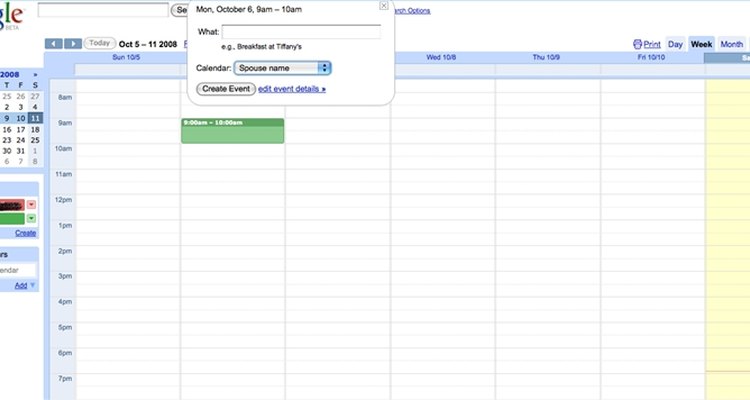
Anyone can add events to the calendar easily by clicking on the calendar screen for the selected date and time. Fill in the details for each event. For example, you can set up notifications, so family members get alerts when an event is near. You can also decide if the people who are invited can make changes to the event.
Tips for Using Your Family Calendar
Google Calendar can be an effective way to manage your family's schedule, but it takes consistent use by all family members. Use these tips to make the calendar more effective:
- Enter every event. Don't assume family members will remember recurring events.
- Save time by using the repeating events option in Google Calendar when you add the initial event. If your child has tutoring every Tuesday, enter the event once and set it to repeat every Tuesday.
- Download the Google Calendar app on mobile devices. This gives all family members access to the information even when they're not at home.
- Get everyone in the habit of checking the calendar frequently. It's only useful if everyone is on board.
- Let older kids enter their own activities. This gives them ownership and encourages them to use Google Calendar more often.
- Set alerts, so family members get reminders. This option cuts down on missed appointments.
- Keep the calendar current. Times and dates change frequently in families. Make sure everyone knows about the changes by updating the calendar events.
Related Articles

How to Set Up a Page for Class Reunions ...

How to Make Invitations on Facebook

How to Make a Photo Slideshow for an ...

How to Make a Wedding Program on ...

How to Make a Family Directory

How to Make an Elderly Activities ...
Instructions for a Casio W-96H Watch

How to Make a Phone Directory for My ...
How to Make a Wedding Seating Chart in ...

Retreat Welcome Packet Ideas

How to Make a Pictorial Address ...

How to Make a Family Reunion Newsletter

Casio Telememo 30 Watch Instructions
How Do I Set Up My Casio Calculator ...

How to Use My Webcam to Chat With Other ...

Instructions for a G-Shock 2688 ...

Activities to Do When Reunited With Old ...

How to Plan Fun Activities for Kids

Casio Telememo 30 Instructions

How to Handle a Husband That Is Pushing ...
References
Tips
- Google makes it easy to customize reminder and recurring settings for each event. Experiment with the configuration until you find a set-up that suits your needs.
- Google makes it easy to print calendars and syncs well with other desktop and mobile applications.
Writer Bio
Shelley Frost writes professionally on a full-time basis, specializing in lifestyle, family, parenting and relationship topics. She holds an education degree and has extensive experience working with kids and parents.
Photo Credits
cjohnson