eHow launches Android app: Get the best of eHow on the go.

How To

How to Get to BIOS on a Dell Computer

Contributor
By Melynda Sorrels
eHow Contributing Writer
(1 Ratings)
Get to BIOS on a Dell Computer
flickr.com

There are many ways to open the BIOS. Actually, there is usually one or two ways per computer. Different manufacturers have different ways to access BIOS.
The BIOS is usually stored on a ROM chip on the motherboard which stores hardware setup information for the computer. Without the BIOS you would have to reconfigure your hardware every time you reboot the computer.

From Quick Guide: Basics of Dell Computers
Difficulty: Easy
Instructions

Things You'll Need:

  • Dell Computer

    Inspiron, Optiplex. Latitude, Dimension, Precision models

  1. Step 1

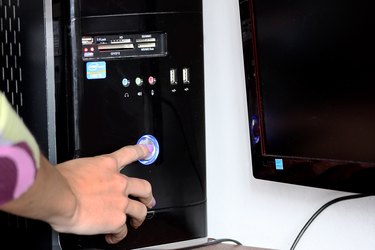
    Turn on your computer. If your computer is already on then reboot it. You need to see the initial display screen to get into the BIOS.

  2. Step 2

    Press the "F2" key when you see the initial screen displaying the BIOS provider information. If using the Optiplex and Dimension models, press the "DEL" key instead of the "F2" key.

  3. Step 3

    Enter password if required. When finished in the BIOS be sure to save your changes. For changes to take place you must reboot the computer.

  4. Dell 400 model

  5. Step 1

    Turn on your computer. If your computer is already on then reboot it. You need to see the initial display screen to get into the BIOS.

  6. Step 2

    Press the "F3" or "F1" key when you see the initial screen displaying the BIOS provider information.

  7. Step 3

    Enter password if required. When finished in the BIOS be sure to save your changes. For changes to take place you must reboot the computer.

  8. Dell 4400 model

  9. Step 1

    Turn on your computer. If your computer is already on then reboot it. You need to see the initial display screen to get into the BIOS.

  10. Step 2

    Press the "F12" key when you see the initial screen displaying the BIOS provider information.

  11. Step 3

    Enter password if required. When finished in the BIOS be sure to save your changes. For changes to take place you must reboot the computer.

  12. Older Dell computers

  13. Step 1

    Turn on your computer. If your computer is already on then reboot it. You need to see the initial display screen to get into the BIOS.

  14. Step 2

    Press either "Ctrl + Alt + Enter" keys, or the "Del" key when you see the initial screen displaying the BIOS provider information.

  15. Step 3

    Enter password if required. When finished in the BIOS be sure to save your changes. For changes to take place you must reboot the computer.

Tips & Warnings
  • In case an OEM splash screen appears first, hit the "ESC" key to see the boot up information. Then you can hit the appropriate key to enter the BIOS.
Subscribe

Post a Comment

Post a Comment

Related Ads

  • Have you done this? Click here to let us know.
I Did This
Get Free Computers Newsletters

Copyright © 1999-2009 eHow, Inc. Use of this web site constitutes acceptance of the eHow Terms of Use and Privacy Policy.   en-US Portions of this page are modifications based on work created and shared by Google and used according to terms described in the Creative Commons 3.0 Attribution License.

eHow Computers
eHow_eHow Technology and Electronics