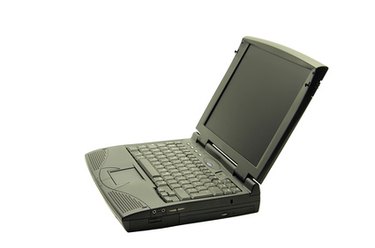
When a laptop screen gets blurry and distorted, there are two possibilities as to its failure: software problems or hardware problems. A software problem would be corrupted graphics software or a virus. A hardware problem is far worse, indicating that the physical monitor itself needs to be replaced. Unless you have a strong background in Information Technology, replacing a laptop screen is out of the question for most people. Thus, if your problem turns out to be related to the hardware (the physical monitor), your best bet is to contact the manufacturer. If it turns out to be a software problem, however, there are a few simple steps you can go through to solve it.
Step 1
Change your computer's resolution. This is the simplest solution, although it doesn't always work. Right-click on your desktop and left-click "Properties"--or Personalize, depending on your version of Windows. Click on "Display Settings." A new window will appear with a sliding bar. This sliding bar will change your computer's resolution. Change the slider one notch, and left click on the "Apply" button. Your screen should black out for a second and then come back.
Video of the Day
Step 2
Determine the name of your video card. Right-click on the "My Computer" icon on your desktop, and then left click on "Manage." On the left-hand side of the new popup window, left click on "Device Manager." On the right-hand side of the window, double-click on "Display adapters." A new item should appear below it. This is the name of your video card.
Step 3
Find the newest driver with a Google search. A driver is the special software that pieces of hardware, like video cards, use to communicate with your computer. Over time, sometimes they become corrupted or too outdated and cause errors to appear on your screen. Open a Google search, and type in the exact phrase you found in the step above. Add the word "driver" to the end of it and do the search. For most drivers, the video card manufacturer's homepage should be within the top five results. Look through them carefully. If you find the driver, download and install it. If not, go on to the next step.
Step 4
Roll back the driver. This is actually the opposite of finding a new driver, instead returning to a previous driver. If you already have the newest driver or are unable to find a newer one, an older but more stable driver may be a quick solution to your problems. Go back to the "Display adapter" from Step 2. Right-click on the video card's name and then left click on the "Properties" option that appears from the menu. Left-click on the "Driver" tab in the new window, and then left-click on "Roll Back Driver".
Video of the Day