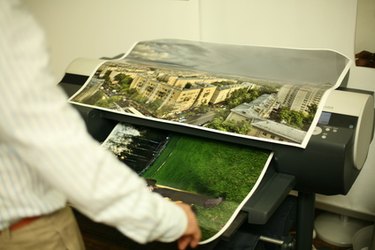
Canon is an electronics company that produces a variety of different products, including computer printers. These printers connect to your computer typically through a standard USB data cable and print any document you choose. However, if the Canon printer is not printing you need to determine what is causing the problem and correct whatever the issue is.
Step 1
Check the cable connection running from the Canon printer to your computer. If the USB data cable is not completely connected into either the computer or the printer the print request is not going to reach the printer.
Video of the Day
Step 2
Fill the paper tray of the Canon printer. If there is no paper (or only a few sheets) the printer is unable to print the document. Fill the printer tray and retry to print the document.
Step 3
Open the document you want to print and select the "Print" option. Click the printer selection and choose the Canon printer. If the Canon printer is not selected as the go-to printer it does not receive the printer request.
Step 4
Install the Canon printer's drivers. Without the drivers the computer is unable to send the request to the printer. These drivers are available on a driver installation CD that came with the hardware. Insert the CD into the computer and follow the prompts of the installation wizard.
Step 5
Change out the ink cartridges of the Canon printer. If the cartridges are running out of ink the printer is unable to produce the document.
Video of the Day