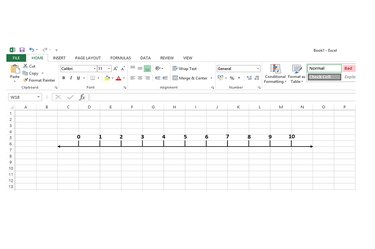
Number lines can help build math skills, using a visual sequence of numbers to teach addition, subtraction, multiplication and division. They are also useful when you're building timelines. There isn't a number line tool in Excel 2013, but you can design and draw your own line using shape and text box tools.
Step 1
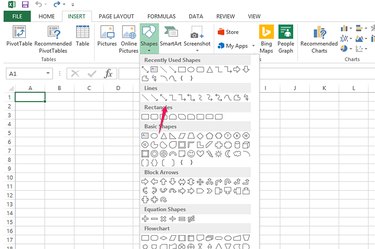
Open Shapes on the Insert tab and select the double arrow line. You'll use this to draw the base line. Position the cursor cross where you want the line to start, hold down the Shift key to keep the line straight and drag across the spreadsheet horizontally to the point where it should stop.
Video of the Day
Step 2
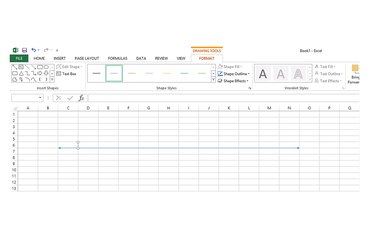
Select the line shape from the Shapes menu. You'll use this to draw vertical indicator lines on the base line. Put the cursor on the base line where the first vertical line should start, and drag it up or down, depending on your preferred layout. Repeat to draw the rest of the lines or copy the first and use paste to insert the rest.
Step 3
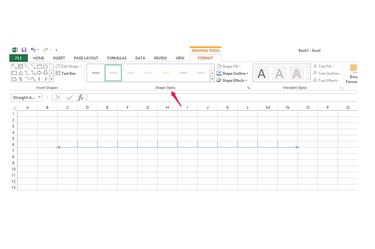
Change the color and thickness of the lines if you don't like the default. Select a line to open the Drawing Tool's Format menu. Select a new color and thickness from the defaults in the Shape Styles box or select the Shape Outline menu for additional color, weight and style options. Repeat the process to apply the format to other lines.
Step 4
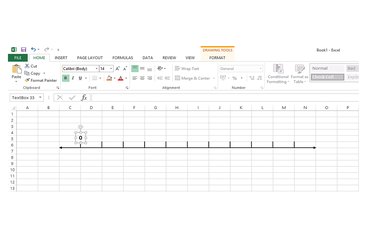
Select Text Box on the Insert tab and click an empty cell to insert the box. Type in your first number. To change its font, size, color or style, highlight the number and use the tools in the Font area of the Home tab. Hover your mouse over the box until the cursor shows four arrows and drag the box into position on its vertical line. Copy and paste the box. Change the number in the copied box to the next one in your sequence and position it on its vertical line. Repeat until you've created and positioned all your numbers.
Step 5
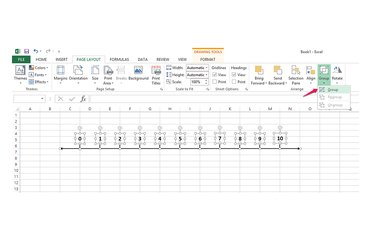
Group all the components of your number line together. Hold down Shift and then select each line and box. Select Group on the Drawing Tools Format menu. This turns all the parts of your number line into one object, making it easier to move or copy the whole line.
Video of the Day