If you want your clock to be as accurate as possible, you have to go for an atomic wall clock. Atomic clocks, sometimes called radio-controlled clocks, pick up the signal of the National Institute of Standards and Technology's atomic clock from a radio transmitter in Fort Collins, Colorado. Common atomic clock brands include Howard Miller, Bulova, La Crosse and Seiko.
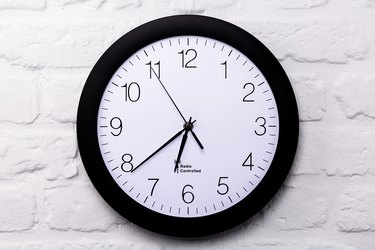
How Atomic Wall Clocks Work
An atomic clock contains a small antenna and radio receiver that's set to pick up the long wave (60 kHz) signal of WWVB, NIST's radio transmitter. WWVB broadcasts nonstop, covers most of the continental United States and may even be picked up by atomic clocks in Alaska and Hawaii.
Video of the Day
Video of the Day
When an atomic clock catches the WWVB signal, its hands spin 20 times faster than normal, adjusting with an error of only one second in up to 100 million years. (In other words, you can't get a more accurate clock.) Typically, an atomic clock gets this signal at night and makes automatic corrections to provide the right time.
Selecting Time Zone
Setting an atomic wall clock is simple. Insert the correct number of fresh AA LR6 alkaline batteries in the battery compartment according to the polarity markings. It's best to do this late in the evening because longwave radio signals are normally not received during the day. However, if you set your clock during the day, it will still function as an accurate quartz clock until it finds the WWVB signal. Choose your time zone by pressing the correct time zone button (PT stands for Pacific Time, MT denote Mountain Time, CT is for Central Time and ET stands for Eastern Time). If you press the wrong time zone button, simply press the correct one next. If no time zone is selected, the clock will default to PT.
Daylight-Saving Time
Atomic clocks adjust for daylight-saving time, so if your area doesn't observe DST, like the state of Arizona, you must disable the DST function. After setting your clock, press the small button labeled "DST" (normally located just above and between the ET and CT Time Zone buttons on the back of the clock) for one second. Your clock will no longer observe DST.
Manual Setting
If your time zone is outside of PT, MT, CT or ET, you must set the time manually. Find and press the Manual Time set button on the back of your clock until you reach the correct time. Place your clock in an upright position near a window to help it find its initial signal. Within a few minutes, your clock will find the WWVB signal and set itself to the correct time or decide that it can't receive the signal at this location and time of day. It'll periodically search for the WWVB signal and automatically reset the hands when it receives it. Some atomic clocks may have a WWVB search button that searches for the WWVB signal when you press it.
Positioning an Atomic Wall Clock
The best spot for an atomic wall clock is near a window, preferably facing Colorado. If possible, position it at least six feet away from household electrical appliances, such as TVs, computers and air conditioners. The WWVB signal is strong enough to get through most residential buildings and steel buildings with plenty of windows. However, the signal may not reach inside shopping malls and rooms inside large office buildings without windows. Setting the time manually is recommended in those locations (the clock will still detect the WWVB signal and set the clock to the right time whenever it receives it).