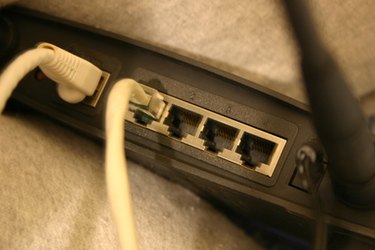
When your computer is connected to a network, the default gateway is the server, router or switch that the computer is connected directly to. If you are troubleshooting a connectivity problem, obtaining the default gateway is likely to be something that you will need to do as part of the troubleshooting process, as lack of connectivity to the default gateway will lead to lack of connectivity to the Internet. Find your default gateway to begin this troubleshooting process.
Finding the Default Gateway in Windows
Video of the Day
Step 1
Press the Windows logo and "R" keys simultaneously, then type "cmd" without quotation marks in the window that appears. Press "Enter." This launches the command prompt window.
Video of the Day
Step 2
Type "ipconfig" at the command prompt and press "Enter."
Step 3
Examine the set of numbers next to "Default Gateway." This set of numbers (e.g. "192.168.0.1" is the address of the device that your computer is connected to on the network.
Finding the Deafault Gateway on a Mac
Step 1
Click the Apple logo at the top of the screen, then click "System Preferences." Alternatively, click the System Preferences icon in the dock.
Step 2
Click the "Network" icon.
Step 3
Click the drop-down menu next to "Show," and select the network connection that you would like to display the information for, such as "Built-in Ethernet."
Step 4
Click "Advanced," and make sure that the "TCP/IP" tab is on top on the screen that appears.
Step 5
Examine the set of numbers next to "Router." This set of numbers (e.g. "192.168.0.1") is the address of the device that your computer is connected to on the network.