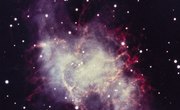
Stars are composed primarily of hydrogen and helium gases. They vary dramatically in size, luminosity and temperature, and live for billions of years, transitioning through several stages. Our own sun is a typical star, one of hundreds of billions that litter the Milky Way.
The life cycle of a star consists of a number of well-defined stages.
Birth
Stars are born in great galactic “nurseries” called nebulae, a Latin word that means cloud. Nebulae are dense clouds of dust and gas that can give rise to hundreds of stars. In some regions of a nebula, gas and dust will gather together as clumps.
A new star arises when one of these clumps accumulates so much mass that it collapses under the force of its own gravity. The increased density of the condensing cloud causes its temperature to rise significantly. Eventually, the temperature becomes so high that nuclear fusion occurs, forming an “infant” star called a protostar.
Main Sequence Stars
Once a protostar has gathered enough mass from the surrounding gas and dust clouds, it becomes a main sequence star. Main sequence stars fuse hydrogen atoms together to create helium in a process known as nuclear fusion. Stars can exist in this stage for billions of years. Our sun is currently in its main sequence stage.
A star’s luminosity depends heavily upon its mass. The more massive a main sequence star, the more luminosity it will exhibit. The color of a main sequence star is an indication of the star’s temperature. Hotter stars will appear blue or white and cooler stars appear red or orange. The mass of a star will also influence its lifespan. The more mass a star has, the shorter its lifespan will be.
Red Giants
After burning for billions of years, a main sequence star will eventually exhaust its fuel supply as the majority of its hydrogen is converted into helium through nuclear fusion. At this point in the life cycle of a star, the excess helium causes the star’s temperature to increase. When this occurs, the star will expand to become a red giant.
Red giants are bright red in color. They are also larger and much more luminous than main sequence stars. As the red giant’s core continues to collapse under the force of gravity, it will become dense enough to convert its remaining supply of helium into carbon. This occurs over an approximately 100 million year period, until it is time for the star to die. Just as mass will dictate the luminosity of a star, it also will determine the manner of a star’s death.
White Dwarfs
Main sequence stars that have lower masses ultimately become white dwarfs. Once a red giant has burned through its helium supply, the star will lose mass. Its remaining core of carbon will continue to cool and decrease in luminosity over billions of years until it becomes a white dwarf.
Eventually, the white dwarf star will cease to produce energy altogether and darken to become a black dwarf. White dwarf stars are smaller, denser and less luminous than red giant stars. The density of white dwarf stars is so great that a mere spoon of white dwarf material would weigh several tons.
Supernovas
Main sequence stars that have higher masses are destined to die in dramatic and violent explosions called supernovas. Once these stars have burned through their supply of helium, the remaining carbon core is eventually converted into iron. This iron core will then collapse under its own weight until it reaches a point where matter begins to bounce off of its surface.
When this happens, a massive explosion occurs that will generate a brilliant flash of light that can sometimes equal the luminosity of an entire galaxy of stars. During some supernova explosions, protons and electrons will combine to form neutrons. This in turn leads to the formation of extremely dense stars called neutron stars.
References
Resources
About the Author
Tamara Moffett is a freelance copywriter with a bachelor's degree in English and over seven years of experience. She specializes in writing persuasive sales copy, news stories and feature articles for magazines. Her work has appeared online and in the pages of publications like "Green Business Quarterly," "Black Ink Magazine" and the "Daily Journal of Commerce."