Day-to-day message options in Yahoo Mail show up on menu bars in your Inbox and on the Compose screen. These consist of options for dealing with individual messages and composition -- deleting emails, moving emails, changing text style and so on. For options that affect how your entire account works -- signatures, filters, security options, etc. -- open the Settings screen.
Message Options
Video of the Day
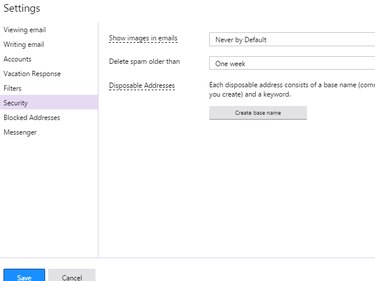
Yahoo Mail options for working with specific incoming emails appear on a menu bar atop the Inbox. To format outgoing emails, use the toolbar below the message on the Compose screen.
Video of the Day
Inbox Mail Options
To work with messages in your inbox, check one or more emails and choose an option from the menu bar to Delete, Move or mark messages as Spam. For other options, such as marking a message as unread, click More.
Formatting Options
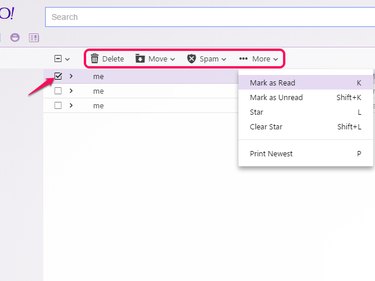
Beneath the composition area in an outgoing email, you'll find options for formatting your text. Click Tt to change the font or text size, B to bold, I to italicize or A to change colors. These options apply only to the current email: select a block of text and then click an option to apply it to the selection, or click an option without selecting text to use it for the input to come.
Account-Wide Options
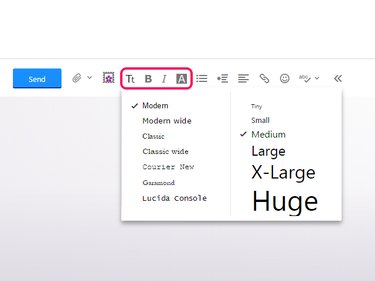
For options that affect your entire Yahoo Mail account, rather than specific messages, mouse over the gear icon and choose Settings.
Yahoo Mail has dozens of settings for customizing the site to your liking. After changing settings, click Save to finish. Some of the most useful sections and settings are introduced here.
Viewing Email
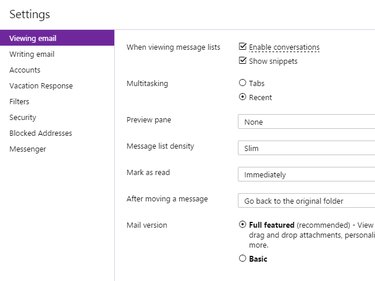
On the Viewing Email tab, choose how your inbox looks and how it organizes emails. Options include whether to show email previews in the inbox and how quickly to mark messages read. If you don't like how Yahoo Mail groups replies together, turn off Enable Conversations. To revert the entire site to an older, simpler style, change the Mail Version to Basic.
Writing Email
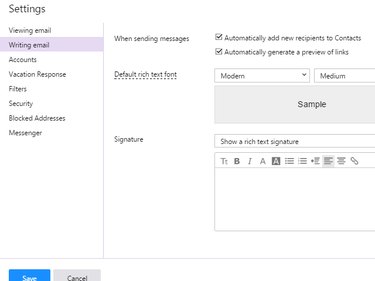
In Writing Email, you'll find options about adding recipients to your contacts list and an option for the default font and text size of your outgoing emails. You can't set a default font color, but if you use a signature (choose Show a Rich Text Signature), your signature can include formatting options such as color.
Accounts
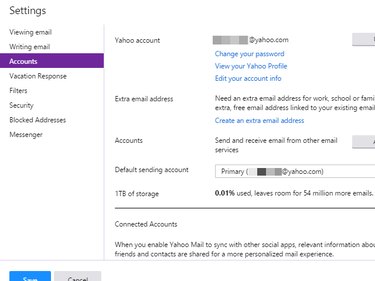
The Accounts tab shows options for your Yahoo account, including both Yahoo Mail and other services. Visit this tab to Change Your Password, add new email addresses, edit your profile or link to Facebook.
Filters
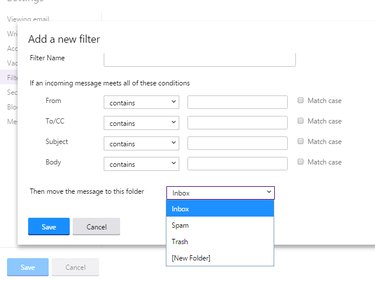
Filters help you organize your incoming messages -- or ignore certain types of messages entirely -- by placing emails into different folders based on certain criteria. On the Filters tab, click Add to make a new filter. Give the filter a name to identify it, and then add matching criteria, such as an email's sender or subject line. Pick the folder where the filter should deposit matching emails and click Save.
Security
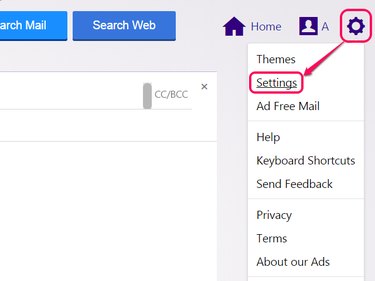
The Security tab has three options. Show Images in Emails sets whether to show attached pictures automatically or only after a click. Choose Never by Default or Always, Except in Spam Folder. Images in spam can alert a spammer that you've opened a message, so you can't choose to always show images within the Spam folder. The second option sets how quickly to erase spam emails. The last option lets you create disposable addresses, which help you avoid spam when signing up for a websites or stay anonymous when giving out your email address to strangers. To start, click Create Base Name and pick a name as a base for all your disposable addresses.