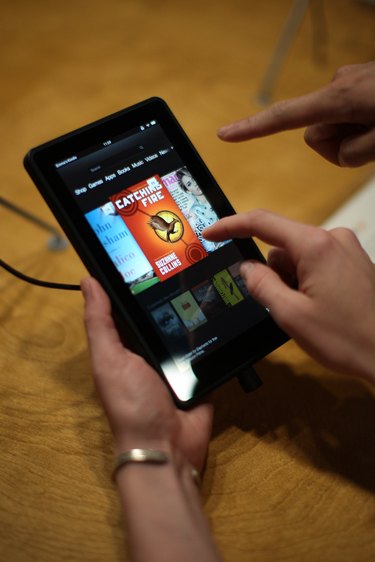
As of August 2013, the Kindle Fire HD supports ten different languages (see Resources). The language settings on your Kindle are accessed from the pull-down notification tab, in the "More" section. When choosing a language on your Kindle Fire HD it changes the language of the menus and the keyboard. It will not change the language of any content you have on the Kindle Fire HD unless that content is available in multiple language formats.
Step 1
Browse to the Amazon website from your computer to locate the update for your Kindle Fire HD. Click "Shop by Department" in the upper left side of the Web page, point to "Kindle" and then click your version of the Kindle Fire HD. Click "Kindle Support" in the bar across the top of the page, click your version of the Kindle Fire HD, scroll down to the "Learn More" section and choose the software update link for your version of the Kindle Fire HD (see Resources).
Video of the Day
Step 2
Note the version number for the latest Kindle software on the website.
Step 3
Unlock your Kindle Fire HD, swipe down from the top and touch "More." Choose "Device" followed by "About," and then read the "System Version" displayed. If the version is earlier than the one displayed on the Amazon website, you should download the update.
Step 4
Connect your Kindle Fire HD to a wireless network. Swipe down again and choose "Sync." Your Kindle Fire HD will automatically download and install the update with the language pack included.
Video of the Day