While custom images or artwork found in CMYK files can be output to a digital printer, they can't be used for projects like spot-color printing or T-shirt silk screening with conversion to Pantone (PMS) spot colors. CMYK stands for cyan, magenta, yellow and black, the four colors used by professional color printers and presses. Using Photoshop or another digital imaging software package, you can convert blocks of color from CMYK to PMS for spot color applications.
Step 1
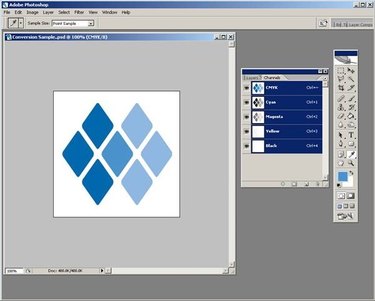
Select a CMYK image with large, discrete blocks of color for conversion to Pantone (PMS). Open the image in Adobe Photoshop or similar digital photo editing software package.
Video of the Day
Step 2
Make sure your image is in CMYK format and your background color is set to white. If not, use the menu to select "Image" > "Mode" > "CMYK Color" and/or left click on the background color to choose white.
Step 3
Open the Channels and Layers palettes, using the Window menu at the top of the screen.
Step 4
Use the eyedropper tool to select your first PMS spot color.
Step 5
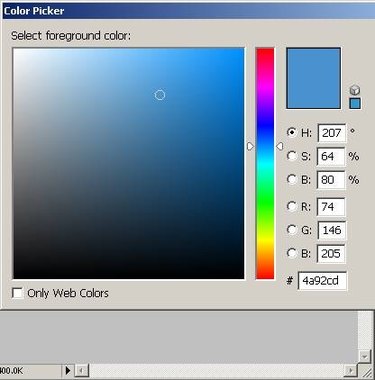
Left-click on the color in the toolbar to open the Color Picker dialogue window.
Step 6
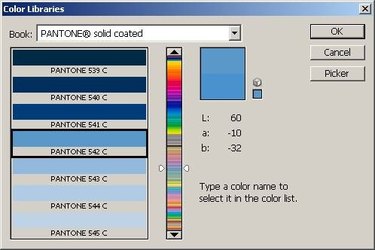
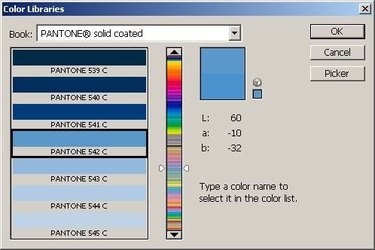
Click "Color Libraries" button in the Color Picker dialogue window and select "PANTONE solid coated" in the Book drop down menu. Note the PMS color selected by Photoshop in the list to the lower left of the window. Close this window by clicking "OK."
Step 7
Click the "Create a new channel" button at the bottom of the Channels palette. If the entire screen turns black, select the full image by choosing "All" under the Select menu and hit "Delete" to remove the black area.
Step 8
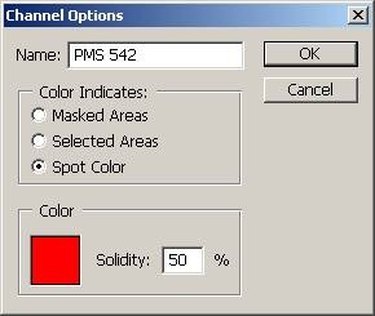
Double-click on the new channel in the Channels palette to open the Channel Options window. Rename the channel to the PMS color noted in Step 6. Under "Color Indicates," choose "Spot Color." Change Solidity to 100 percent.
Step 9
Click the color box in the lower left of the Channel Options window to open the Color Picker dialogue window.
Step 10
Click "Color Libraries" button in the Color Picker dialogue window and again select "PANTONE solid coated" in the Book drop down menu. Select the PMS color you noted in Step 6 on the list of colors to the lower left of the dialogue window. Close this window by clicking "OK." Close the Channel Options window by clicking "OK."
Step 11
Select the CMYK channel on the Channels palette.
Step 12
Use the Magic Wand to select all areas of your image that match the first Pantone color you've selected. You may need to adjust your tool's tolerance, anti-alias and contiguous properties in the tool options bar to best meet your image's needs.
Step 13
Use "Ctrl+C" or "Copy" under the Edit menu to select the highlighted color areas.
Step 14
Select the Pantone channel you just created on the Channels palette. Use "Ctrl+V" or "Paste" under the Edit menu to paste the highlighted color areas onto this channel.
Step 15
If the color block appears a shade of gray, open the Levels dialogue box by selecting Adjustments Levels on the Image menu.
Step 16
Click and drag the leftmost (black) input control until it has just passed the leftmost spike in the Levels histogram. Click "OK" to exit the dialogue window.
Step 17
Select the CMYK channel on the Channels palette. Return to Step 4 and select your second Pantone color, repeating until each PMS color has its own channel.
Step 18
Send your finished Photoshop file to your plate or film output provider who can then output each Pantone Channel as a separate plate for printing to the specified PMS color.
Video of the Day