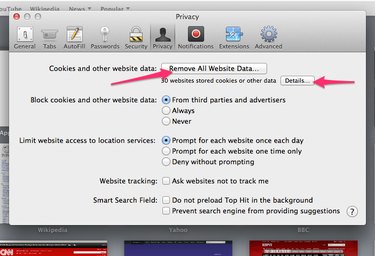
When you move around the Internet, your Web browser often saves browsing information to speed up load times and simplify tasks such as filling out forms and remembering personal preferences. While storing this data as cookies and in the browser's cache can be handy, keeping tabs on what's being stored and tracked is important to safeguarding your privacy. The Safari 8 browser enables you to clear both cookies and the cache using the Safari Preferences panel.
Clear Cookies
Video of the Day
Step 1
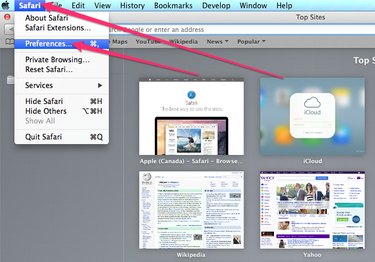
Click Safari on the Apple menu bar along the top of your screen and select Preferences to open the Safari Preferences panel.
Video of the Day
Step 2
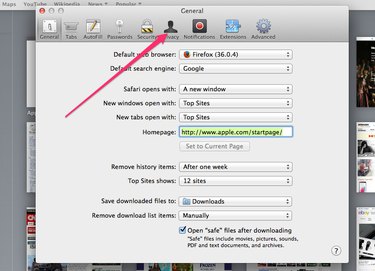
Click the Privacy tab.
Step 3
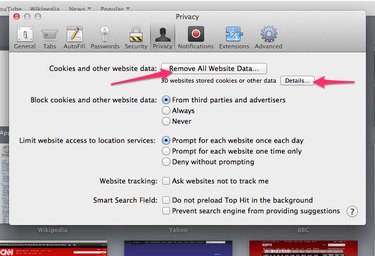
Click the Remove All Website Data button to delete all cookies currently stored by Safari.
To remove only certain cookies, click the Details button, select the cookies you want to remove and click the Remove button. Click Done when you're finished.
Clear the Cache
Step 1
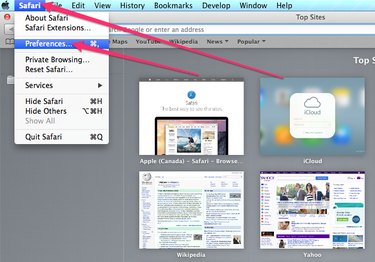
Select Safari on the menu along the top of the screen and choose Preferences.
Step 2
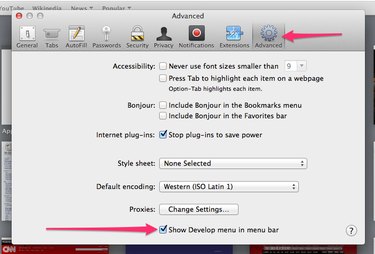
Click the Advanced tab and tick the Show Develop Menu in Menu Bar check box to add the Develop button to the Apple menu.
Step 3
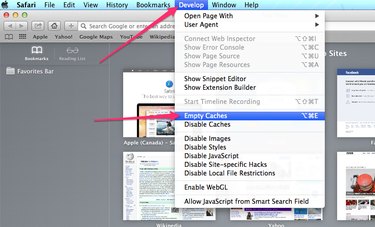
Click the Develop button and choose Empty Caches to clear Safari's cache.