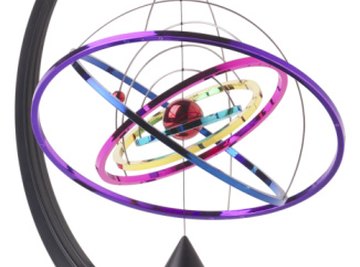

A copper atom is a metal located in group 11, period 4 of the Periodic Table of Elements. Its atomic symbol is Cu. Each atom has 29 protons and electrons, 35 neutrons, and an atomic weight of 63.546 amu (atomic mass unit). Copper is often used in electrical wiring because it is a good conductor.
- Wire
- String
- Glue
- Tape
- 29 craft beads or balls, red
- 35 craft beads or balls, blue
- 29 small craft beads or balls, yellow
The exact colors of the beads are unimportant, as long as there is a different color for each of the three particles.
The particles can be represented by anything round.
Using a single ball for the nucleus is acceptable if you only need to show the electron orbitals.
Gluing the last bead in place after you have taped the ends of the wire closed can mask the taped sections.
Glue the 29 red and 35 blue beads or balls together in a clump or onto a large Styrofoam ball. Make the placement random. Do not glue all the red or all the blue balls to each other.
Slide two of the yellow beads on to the shortest wire. Glue them to the wire by placing a dab of glue inside each bead. Hold each bead while it dries. Make sure the beads are spaced equally on the wire.
Slide eight of the yellow beads onto the next shortest wire. Glue them to the wire by placing a dab of glue inside each bead. Hold each bead while it dries. Make sure the beads are spaced equally on the wire.
Slide eighteen of the yellow beads on to the next second longest wire. Glue them to the wire by placing a dab of glue inside each bead. Hold the bead while it dries. Make sure the beads are spaced equally on the wire.
Slide the last yellow bead onto the longest wire. Glue it to the wire by placing a dab of glue inside the bead. Hold the bead while it dries.
Connect the ends of each wire with tape or glue. You should now have four rings.
Tie one end of the string onto the smallest circle. Tie the other end to the next smallest circle. Leave enough space that the electron beads do not touch.
Repeat step 7 for the each of the circles until all of the circles are tied together.
Tie one end of a string onto the smallest ring. Tie the other end around the nucleus or tape or glue it to the top of the nucleus.
Things You'll Need
Tips
References
Tips
- The exact colors of the beads are unimportant, as long as there is a different color for each of the three particles.
- The particles can be represented by anything round.
- Using a single ball for the nucleus is acceptable if you only need to show the electron orbitals.
- Gluing the last bead in place after you have taped the ends of the wire closed can mask the taped sections.
Photo Credits
Hemera Technologies/PhotoObjects.net/Getty Images