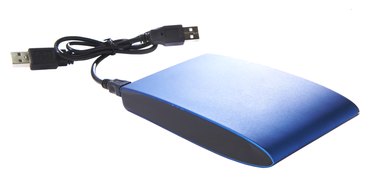
Windows' Backup and Restore feature takes the effort out of performing regular backups. Its default selection automatically chooses your libraries files, which contain your documents, pictures, videos and music. It also creates a system image so you can back up your Windows system files, programs and program configurations. The integrated scheduler lets you decide when to perform backups, so after setting it up the first time you don't have to worry about it again.
Backup
Video of the Day
Step 1
Attach your external hard drive to your computer and turn on the device, if necessary. Most external hard drives connect via your computer's USB port, but some drives may use another connection protocol, such as eSATA. The external hard drive should be large enough to accommodate the backup. Microsoft recommends using a hard drive with at least 200GB of free space on it.
Video of the Day
Step 2
Click "Use This Drive for Backup" in the AutoPlay window.
Step 3
Click "Next" if you're prompted for a backup location. This screen may not appear if you have only one backup option. Otherwise, you'll have the option to choose your backup location, but the external hard drive will be selected by default.
Step 4
Click "Next" again to keep the default "Let Windows Choose" option selected. Alternatively, you can select "Let Me Choose" and select the check boxes next to folders and libraries; this option also lets you choose whether or not to include a system image.
Step 5
Click "Change Schedule" to change the default schedule and then click "OK." The default uses weekly backups on Sunday at 7 p.m.
Step 6
Click "Save Settings and Run Backup" and wait for the backup to complete.
Restore
Step 1
Attach your external hard drive to your computer.
Step 2
Click "Start," type "backup and restore" and click "Backup and Restore."
Step 3
Click "Restore My Files." Alternatively, click "Restore All Users' Files" to restore all files or "Recover System Settings or Your Computer" to perform a system recovery.
Step 4
Click "Browse for Files" or "Browse for Folders" and navigate to the files or folders you want to restore. Repeat the process to add more files or folders. Click "Next" to continue.
Step 5
Click "In the Original Location" to restore files to their original location or click "Browse" to choose another restore location.
Step 6
Click "Restore" to restore your files.