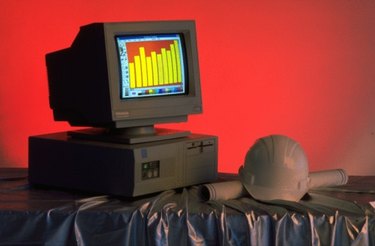
Histograms visually represent the frequency distribution of a data set in a graph form, allowing you to understand its statistical properties. Unlike traditional bar graphs, which often represent mean values, a histogram represents the frequency of a particular event. To make a histogram, you must have a data set that can be divided into classes, with each class having a specific frequency of responses. Microsoft Excel 2010 allows you to generate histograms from a data set, if you have the classes of data and frequency information for each class.
Step 1
Download the Excel 2010 Analysis ToolPak. Click "File," and then "Options." From the Add-Ins category, select "Excel Add-Ins," which display in the Manage box. Click "Go." Check the "Analysis ToolPak" box from the list of add-ins and click "OK."
Video of the Day
Step 2
Choose an appropriate bin size for your data set. The bin size refers to the range of values that fall into a specific class. For example, if your data set is ages of people in the United States, set your bin size to 10 years. This makes the bins correspond to ages 0-10, 11-20, 21-30 and so on, with a maximum bin of 101-110. Select a bin width that creates five to 20 groups of data.
Step 3
Type the bin widths in column A of a blank worksheet, beginning with the lowest number. For the age range example, type 0, 10, 20, 30 and so on.
Step 4
Type the data points in column B of the worksheet. Keep the data points as raw numbers, rather than converting them to frequencies. List the entire set of numbers in any order.
Step 5
Look in the Analysis section of the Data tab. Click "Data Analysis" and highlight the "Histogram" tool from the Analysis Tools box. Click "OK."
Step 6
Enter the Input Range in the box provided, and highlight the contents of column B. In the Bin Range field, highlight the contents of column A. This tells the software what data to use to make the histogram.
Step 7
Select "Chart Output" in the output options section to generate a histogram graph. Click "OK."
Step 8
Modify your histogram to include custom labels. Double-click on the x- and y-axis labels to change the text. Use the "Chart Tools" section to modify the design, layout and format of your histogram.
Video of the Day