By inserting a Microsoft Word document into your PowerPoint presentation, you can include large amounts of information without using dozens of separate slides. If you choose to link to the document instead of embedding it, changes to the document are automatically reflected in PowerPoint. Alternatively, you can insert only a part of the document into the presentation.
Inserting an Entire Word Document
Video of the Day
Step 1
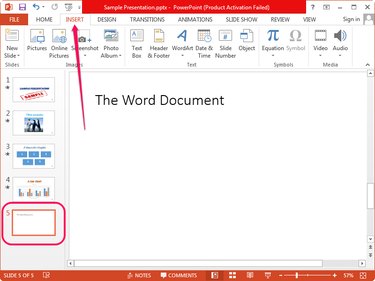
Open the presentation in PowerPoint or create a new one. Select the slide from the left pane and then switch to the Insert tab.
Video of the Day
Step 2
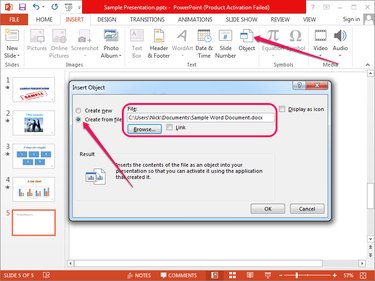
Click the Object button in the Text group to display the Insert Object dialog. Click the Create from file radio button and then click the Browse button and select the Word document using the file browser.
Step 3
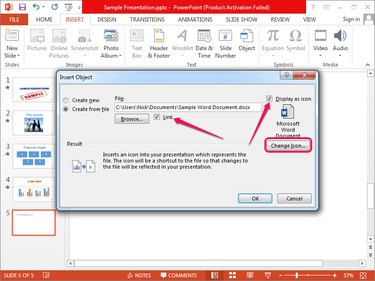
Check the Link box if you want to link to the document instead of embedding it. If you edit a linked Word document, the changes are inserted in PowerPoint automatically.
Optionally, check the Display as icon box to display the object as an icon instead of displaying the first page of the document on the slide.
Click OK to embed -- or link to -- the Word document and then save the changes by pressing Ctrl-S.
Inserting a Portion of the Word Document
You can insert only a portion of the Word document into PowerPoint by using the Paste Special option.
Step 1
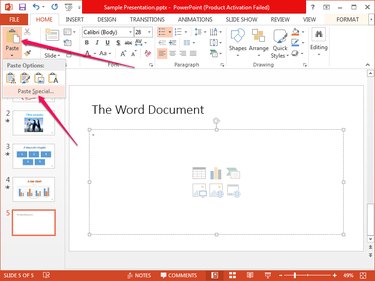
Select the section you want to copy from Word and press Ctrl-C to copy it to the clipboard. In PowerPoint, click the arrow below Paste in the Clipboard group on the Home tab and select Paste Special.
Step 2
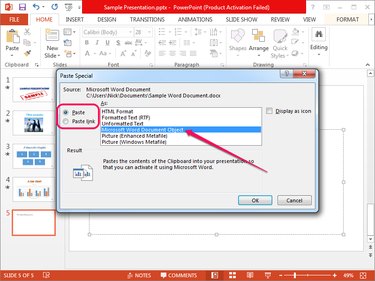
Select Microsoft Word Document Object from the Paste As box to paste the data from the clipboard into a new object on the slide. If you want to create a link to the Word document, click the Paste Link radio button. Click OK to create the Word document object.