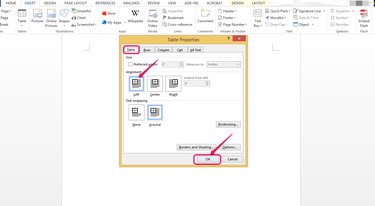
You can align tables to the left, center and right of pages in Microsoft Word in the same way that you can align text. Text can wrap around your table just like it might wrap around an image. In addition, you can align text within table cells. You can use table properties options and the LAYOUT tab in Word to align tables and the text within them.
Step 1
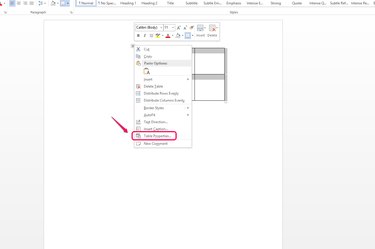
Right click the table move handle which resembles two crossed double-sided arrows, on the upper left corner of your table and choose "Table Properties..." from the drop-down list.
Video of the Day
Step 2
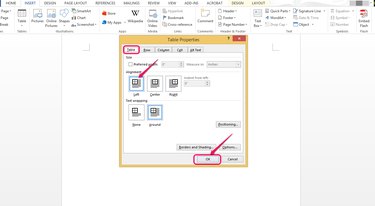
Click the option you want in the Alignment section of the Table tab. For example, choose "Left" to align the table to the left margin. You can also align tables to the center or right margin.
Step 3
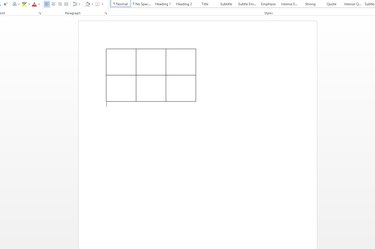
Verify that the table has been aligned to the left margin. Adjust your margin width if you want the table to be closer to the edge of the page.
Step 4
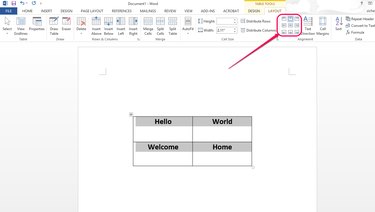
Select your table and locate the text alignment options in the Alignment section of the LAYOUT tab to align the text within the table cells. If you cannot see these choices, you may need to maximize your screen. If you still cannot see them on the Ribbon, access them by clicking the down arrow under the word "Alignment" on the LAYOUT tab.
Step 5
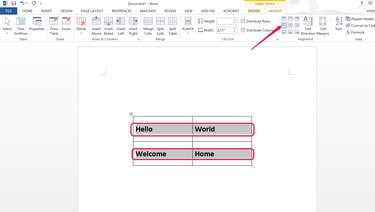
Choose "Align center left," for example, to align your text to the left side of each cell and vertically center it. If you don't see any vertical difference when you choose different vertical alignment options, make sure the height of your cells is large enough to allow the text to move up and down, or choose a smaller font size.
Video of the Day