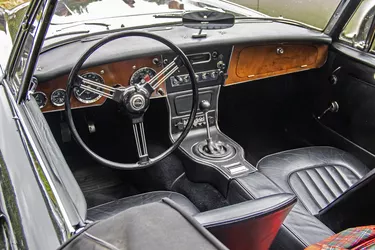
If you are trying to figure out the Blue Book value for a car older than 1989, you may wonder where to start. How do you find the correct information? How can you be sure that you are getting an accurate value? The Kelley Blue Book is the official guide on car valuations, but its manuals only go back so far. If you're looking to sell an old car, you're probably wondering how to figure out the Blue Book values for vehicles older than 1989.
If you're in the market to sell your old car, it's essential to know how to value it. Finding the Blue Book value for a car older than 1989 will require other methods besides using the Kelley Blue Book, which is one of the oldest and most common resources for determining the value of your car.
Video of the Day
Video of the Day
What Is the Kelley Blue Book?
The Kelley Blue Book is the most widely used resource for car valuations. It is published by Kelley Blue Book Company, which has been in business since 1926, according to the Kelley Blue Book website. The company provides values for new and used cars, trucks, motorcycles, boats and RVs. It also provides expert reviews on new and used cars and up-to-date valuations for new and used cars.
Kelley Blue Book gets its data from various sources, including dealers, auctions and private-party transactions. It uses the VIN, or vehicle identification number, to search databases of cars. It considers factors such as vehicle condition, mileage, options, features, regional market conditions and more. In short, it has a lot of experience in valuing cars. However, the Kelley Blue Book only goes back so far. Its manuals only cover vehicles back to the 1989 model year, so what do you do if you're trying to find the Blue Book value of cars from before 1989?
Blue Book Values
There are many types of Blue Book values on a car that the Kelley Blue Book provides, but the most critical value is the trade-in value. The trade-in value is the amount a dealer would be willing to give you for your car if you were trading it toward purchasing a new vehicle. However, it also gives values for suggested retail, the certified preowned value and the private party value. The Kelley Blue Book trade-in value is based on an actual transaction that occurred recently and therefore reflects current market conditions. It does not include dealer markup, so it's a good starting point for negotiation. However, remember that this value is only an estimate and may be higher or lower than the actual amount you could get for your car.
To get the most accurate trade-in value possible, you must provide Kelley Blue Book with some information about your car. This information includes the year, make, model, trim level, options, features, mileage and condition. You must also specify whether you're selling to a dealer or a private party. You should be especially thorough with giving the condition of your vehicle. Kelley Blue Book will then give you an estimated trade-in value for your car. This value is just a starting point; you can usually get more or less depending on the actual market conditions and how good of a negotiator you are.
How to Find the Value of a Car Older Than 1989
There are a few options available if your car is older than 1989.
- Search and compare. You can try searching for the vehicle online or contacting a local dealership.
- Use NADA guides. You can also use the NADA (National Automobile Dealers Association) guides, which cover model years as far back as 1946.
- Contact appraisers. Another option is to contact professional appraisers in your area. They will have experience valuing older cars and can give you a more accurate estimate of your car's worth. The Consumer Financial Protection Bureau recommends searching your local classified ads as well to see if you can find any comparable vehicles.
- Call Kelley Blue Book. You can also call Kelley Blue Book at 1-800-258-2005, option 2. This phone number connects you with the customer service department, and they may be able to assist you. Kelley Blue Book says that transactions for older cars are too rare, so there isn't enough data to analyze and report. However, it has archived information on older vehicles that may help you value your car.