Shop
Gift Guides
Tech Toys
Tech on a budget
All Shop
Smart Life
Gadgets
Cool Apps
Travel
Smartphones
All Smart Life
Technically for parents
Education
Online Safety
All Technically for parents
Tech Support
How to
Reviews
All Tech Support
Entertainment
What’s streaming
Social Life
All Entertainment
CONNECT WITH US
JOIN OUR NEWSLETTER
Get the latest news and alerts!
Later
Notify
Home
Entertainment
Entertainment
By
Jill Layton
Everything Coming to Max in December 2023
Entertainment
By
Jill Layton
Everything Coming to Netflix in December 2023
Entertainment
By
Jill Layton
New to Amazon Prime Video in December 2023
Entertainment
By
Jill Layton
New to Disney+ in December 2023
Entertainment
By
Jill Layton
Everything Coming to Hulu in December 2023
Entertainment
By
Jill Layton
Watch the New Trailer for 'Inside Out 2'
Entertainment
By
Jill Layton
The More Netflix You Watch, the Less Ads You'll See
Entertainment
By
Jill Layton
New to Netflix in November 2023
Entertainment
By
Jill Layton
A TikTok Music Festival Is Happening
Entertainment
By
Jill Layton
New to Amazon Prime Video in November 2023
Entertainment
By
Jill Layton
New to HBO and Max in November 2023
Entertainment
By
Jill Layton
Everything Coming to Hulu in November 2023
Entertainment
By
Jill Layton
Everything Coming to Disney+ in November 2023
Entertainment
By
Jill Layton
Spooky Podcasts for Kids of All Ages
Entertainment
By
Jill Layton
New "Wonka" Trailer Is Fantastical, Comedic, & Chocolatey
Entertainment
By
Jill Layton
New to Netflix in October 2023
Entertainment
By
Jill Layton
New to Max in October 2023
Entertainment
By
Jill Layton
New to Amazon Prime Video in October 2023
Entertainment
By
Jill Layton
New to Disney+ in October 2023
Entertainment
By
Jill Layton
Everything Coming to Hulu in October 2023
Entertainment
By
Jill Layton
Here's the Full Lineup for Hulu's Huluween and Disney+'s Hallowstream
Entertainment
By
Jill Layton
'Trolls Band Together' Trailer Features New Song From NSYNC
Entertainment
By
Jill Layton
Disney Is Releasing a 100-Movie Blu-Ray Collection for $1,500
Entertainment
By
Jill Layton
'Full House' Fans: These Two Rewatch Podcasts Are for You
Entertainment
By
Jill Layton
Everything Coming to Max in September 2023
Entertainment
By
Jill Layton
New to Amazon Prime Video in September
Entertainment
By
Jill Layton
New to Netflix in September 2023
Entertainment
By
Jill Layton
Threads Is Coming to Desktop
Entertainment
By
Jill Layton
Everything Coming to Hulu in September 2023
Entertainment
By
Jill Layton
WhatsApp Just Got a Major Photo Sharing Update
Entertainment
By
Jill Layton
New to Disney+ in September 2023
Entertainment
By
Jill Layton
New 'Walking Dead' Clip Shows Daryl Dixon in France
Entertainment
By
Jill Layton
Disney+ and Hulu's Ad-Free Plans Are Increasing in Price
Entertainment
By
Jill Layton
New to Netflix in August 2023
Entertainment
By
Jill Layton
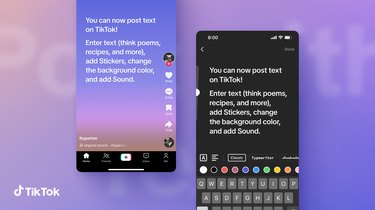
You Can Now Post Twitter-Like Text on TikTok
Entertainment
By
Jill Layton
Everything Coming to Max in August 2023
Entertainment
1
2
3
4
5
>
Report an Issue
Contact*:
Severity*:
High
Normal
Low
Description*:
Screenshot loading...
Cancel
Submit