Keep contact information up to date across all of your devices to ensure you have access to phone numbers, emails and addresses whenever you need them. You can transfer contacts from your computer to your iPhone using either iTunes or iCloud.
Transfer Using iTunes
Step 1
Connect your iPhone to your computer and launch iTunes on the computer, if it does not launch automatically. If you don't have iTunes on your computer already, you can download it from Apple's website at no charge.
Video of the Day
Step 2
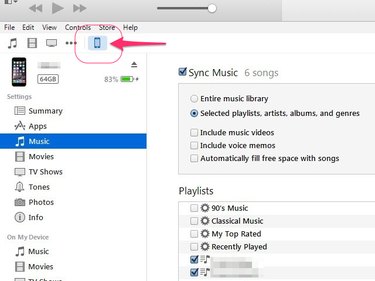
Select your iPhone on the list of devices displayed near the top of iTunes.
Step 3
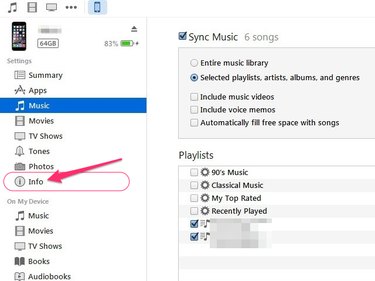
Click the Info tab on the menu along the left of the program.
Step 4
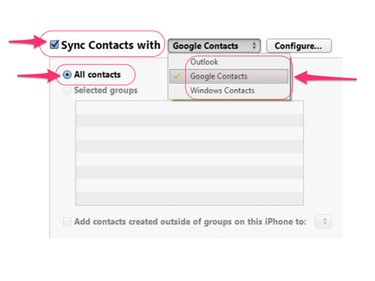
Place a check mark in the Sync Contacts With check box, select the program on your computer from which you want to transfer contacts and then click the All Contacts radio button.
Step 5
Click the Apply button to save your settings and transfer the selected contacts onto your iPhone.
Transfer Using iCloud
You can also sync contacts wirelessly with your iPhone using iCloud, which is convenient if you use Outlook to manage contacts on your computer. The primary benefit to using iCloud over iTunes is that contacts are automatically updated on your iPhone whenever you make changes on your computer.
Video of the Day
Step 1
Download and install the free iCloud for Windows program on your computer.
Step 2
Open iCloud for Windows and sign in using the same iCloud account you use on your iPhone.
Step 3
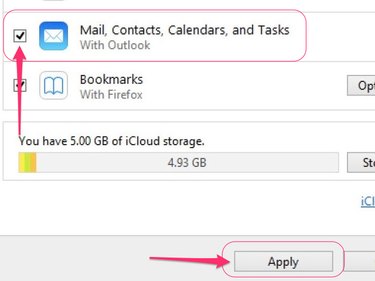
Check the box located next to Mail, Contacts, Calendars, and Tasks and then click the Apply button.
Step 4
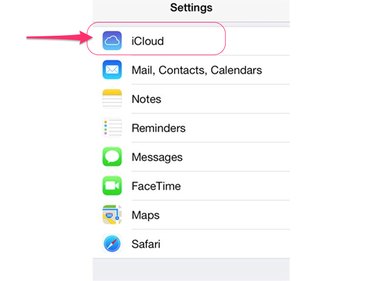
Open the Settings app on your iPhone and tap iCloud on the main menu.
Step 5
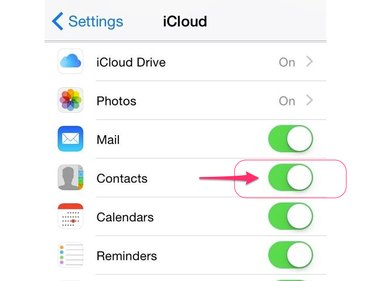
Toggle the Contacts switch to the On position to enable automatic synchronization between your computer and your iPhone.