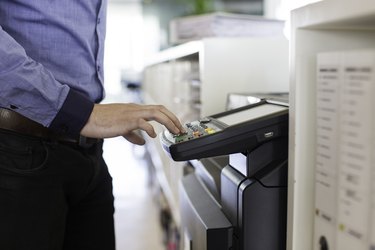
If you've just installed a new fax machine or fax line or you've been having trouble sending or receiving faxes, you may want to send and receive test faxes to verify your equipment is working properly. You can send a test fax to someone you know or use a dedicated test fax number to test your device and line. You can also send a test fax to your fax machine using one of the free internet-based fax services.
Test a Fax Machine
Video of the Day
A fax machine is used to send and receive copies of documents using the ordinary phone system. As with many communications tools, you can't fully test a fax machine in isolation because you need to determine whether it can deliver messages to and from other fax machines.
Video of the Day
If you have a friend or colleague with a fax machine, you can send messages between your fax machine and the other person's machine to verify the devices and the phone lines they're connected to are working properly.
You can also use a specialized test fax number to test your fax machine. For example, HP offers a free service at 1-888-HPFaxme where you can send a fax including your 10-digit fax line number in the fax header. The system receives your fax and sends you a one-page confirmation confirming receipt within five minutes. If your machine and line work, you'll receive the confirmation and know that you can both send and receive faxes.
Using Internet Faxing
Several internet-enabled faxing services permit you to upload a document to have it sent to a fax machine. Among them are eFax and HelloFax. Some of these services allow you to receive faxes online as well, digitizing the received documents, usually for a fee.
Many of these services, including eFax and HelloFax, allow you to send a certain number of faxes at no charge when you sign up for the service. You can use this to test a fax machine and line, verifying that they're able to receive faxes.
In some cases, you may find using an internet fax service is more efficient for your purposes than having a physical fax machine and line.
Troubleshooting Fax Machines
If you test a fax machine and find it can't send or receive faxes, you can often determine what the problem is through a bit of experimentation. Try connecting the fax machine to another phone line or connect a different fax machine to the line, to determine whether the problem is likely in the line or the fax machine. If the fax machine works on another line, the problem is likely in the line, and vice versa.
If you find the problem is in the fax line, contact your phone company. If the problem seems to be in the fax machine, you can seek to have it repaired or replace it.