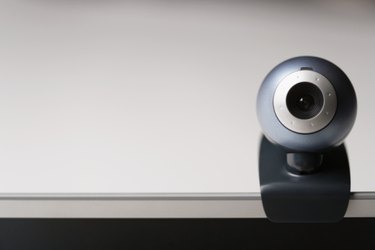
If your webcam is giving you a dark output, you can adjust the settings so that the image looks brighter on the screen. You can usually adjust the brightness, hue and other webcam settings using the program that comes installed during the driver installation. If you have a plug-and-play driver, however, you may have to use a third-party chat client such as Skype or Yahoo! Messenger to make the changes that you want.
Step 1
Open the program that you use to manage the settings of the webcam. For instance, if you are using a Logitech webcam, open "Logitech QuickCam." Navigate to "Webcam Settings" and adjust the "Brightness," "Contrast," "Color Intensity," "White Balance" and other video settings of the webcam.
Video of the Day
Step 2
Use a chat client such as Skype or Yahoo! Messenger to adjust the brightness settings if you have a plug-and-play webcam. For Yahoo! Messenger users, click the "Messenger" tab and then select "My Webcam." When the webcam window appears, click "File" and then "Preferences." Select "Webcam Broadcast" and then "Camera Settings." Choose "Device Settings" and adjust the controller for "Brightness," "Contrast" and other webcam settings. If you are using Skype, proceed to the next step.
Step 3
Log in to "Skype." Click "Tools," "Options," "Video Settings" and then "Webcam Settings." Select the "Video Proc Amp" tab and move the slider for "Brightness," "Contrast," "Hue," "Saturation" and other video settings until you achieve the video quality that you want.
Video of the Day
- Logitech: Troubleshooting
- HP: Adjusting the Webcam Settings to Improve the Video Quality
- Yahoo! Help: How to Adjust My Webcam Settings, Including Brightness and Contrast
- Kioskea: Skype - Adjust the settings of your Webcam
- MSN: How to Adjust Webcam Settings in Messenger?
- AOL: About AOL Video Messenger