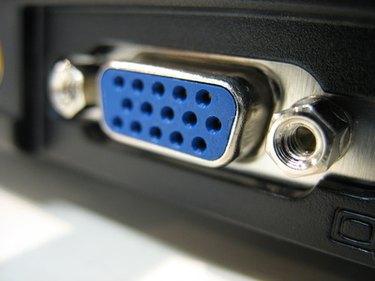
Even though you can perform the same tasks on either a computer monitor or a TV, you can buy a Sanyo TV with a much larger screen than a computer monitor for the same amount of money. The quickest and cheapest computer screen upgrade you can make is connecting your computer to your Sanyo TV. This enables you to view your computer output on a large screen while you surf the web from your couch.
Step 1
Plug one end of the VGA cable to the VGA port of the computer, then plug the other end into the VGA port of the TV. A VGA cable is the same cable used to connect your computer monitor to your computer. Your computer has a VGA port, but not all TVs have them. If your TV does not, proceed to the following step.
Video of the Day
Step 2
Plug one end of the DVI cable to the DVI port of the computer, then plug the other end into the DVI port of the TV. DVI connections transfer both digital video and digital audio signals all with one cable. In order to connect your computer to your TV this way, your computer's video card must support DVI connections. If you do not have this type of video card, proceed to the next step.
Step 3
Plug one end of the HDMI cable to the HDMI port of the computer, then plug the other end into the HDMI port of the TV. HDMI connections transfer both high-definition video and audio with one cable. HDMI connections are standard on high-definition TVs. You need to have a video card installed in your computer that supports HDMI connections for this method to work when connecting your TV to your computer.
Video of the Day