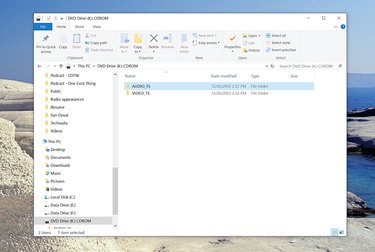
An ISO file is an "image" of a CD or DVD--you can think of an ISO file as the contents of a disc distilled down to a single file. With the right software, you can turn an ISO file into a disc, or at least read and use its individual files.
While older versions of Windows can't read the contents of or run an ISO file natively, if you have Windows 7/8/10, you are in much better shape, as the baility to work with ISO files is now integrated into the OS.
Video of the Day
Video of the Day
No matter what version of Windows you have, there are three options: You can use an ISO to create a disc; you can extract the contents of an ISO and use those files like you would a disc; or you can also "mount" an ISO file as a virtual drive, so it behaves like a CD or DVD on your PC.
Here is an overview of the three methods:
1. Mount an ISO as a virtual drive
It's possible to mount an ISO file so it behaves like a DVD drive. This can be useful to install large applications that were provided on an ISO--but be aware that you can't use this approach to install an operating system like Windows itself.
To do this with a new version of Windows (Windows 7 or later), just find the ISO file and double click it. It will appear as an ordinary drive with its own drive letter in Windows Explorer.
For older versions of Windows, you will want to install and use a program designed for this purpose. There are a lot of choices around, but we recommend WinCDEmu, Virtual CloneDrive, or Pismo File Mount Audit Package.
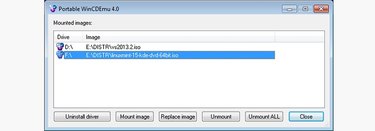
All of these programs are free and easy to use; for the most part, you simply need to double-click the ISO to mount it as a virtual drive, where it will then appear in Windows Explorer as a drive you can explore and use like any other drive.
2. Extract files from an ISO
No matter how you mount an ISO file, after it's complete, you can access individual ISO files via Windows Explorer--you can copy them to your PC or run programs in the usual way.
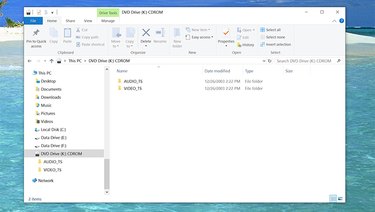
If you'd prefer not to mount the ISO as a virtual drive, there are also programs available which you can use to "peer inside" an ISO and extract specific files. You can use a program like Winrar, for example, for exactly this purpose.
2. Burn an actual DVD from an ISO file
If you need to turn your ISO file into an actual CD or DVD disc (such as if you need to perform an operating system installation on multiple PCs, and this is the most convenient approach), you'll need both a DVD-R (or CD-R) drive, blank media to create the disc, and an appropriate program that can burn the disc from an ISO.
You can do this automatically with Windows 7 or higher; Right click the ISO file and choose to burn it from the context menu and complete the Image Burner Wizard after it appears.
If you have an older version of Windows, you can use a program like Free ISO Burner or Active@ ISO Burner. It's also likely that an appropriate program came with your CD-R or DVD-R drive.