This simple how-to article will explain how to setup an ODBC (Open Database Connectivity) Connection to a SQL Server Database. This connection is most commonly used for a client-server application. For example, if you have a SQL Server Database as a backend and a front-end using something like MS Access.
Step 1
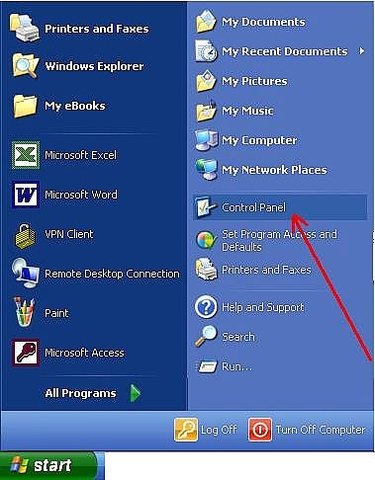
In order to create and setup an ODBC Connection to link tables from a SQL Server Database to a MS Access front-end application, you will need to perform the below steps.
Video of the Day
- To Begin, you will need to open your control panels as follows: Click on Start, then click on Control Panels.
Step 2
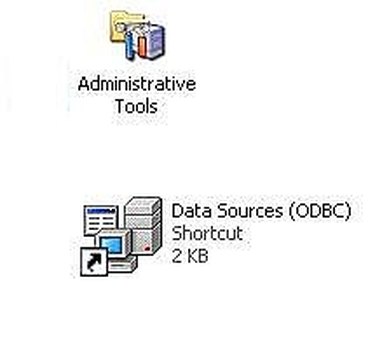
Next, double click on the Administrative Tools icon.
Then, double click on the Data Sources (ODBC) icon.
Step 3
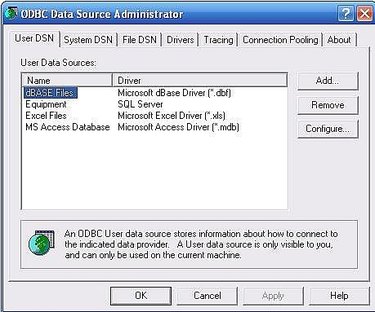
- In the ODBC Data Source Administrator Window, click on the ADD button on the right side of the screen.
Step 4
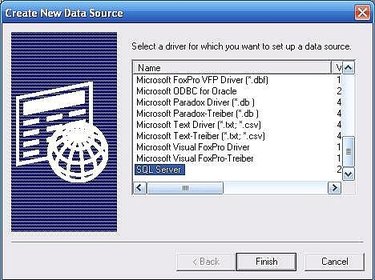
In the Create New Data Source Window, scroll all the way to the bottom of the list and click on SQL Server.
Then, click the Finish button.
Step 5
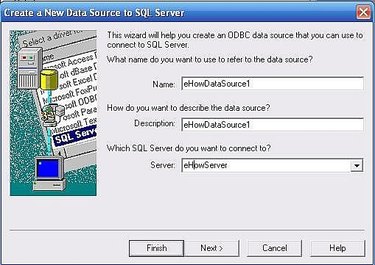
In the Create a New Data Source to SQL Server Window, enter a Name for your ODBC connection. This can be any name you desire and will be used later (see my other eHow Article: How To Link SQL Server Tables in MS Access). In my example, I have used the name "eHowDataSource1."
Next, enter a Description for the data source. Once again, this can be any descriptive information that you desire. In my example, I used the same information that I entered into the name field.
Then, enter the server name for the SQL Server. In this example, I used a server name of eHowServer
Once all of the fields are entered, click on NEXT.
Step 6
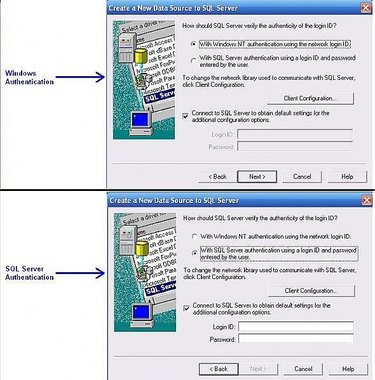
- Click the appropriate radio button for your connection type.
If you access your SQL Server Database using your standard Windows login, keep the default option for "With Windows NT Authentication...". Click on NEXT and go to step 12 below.
Otherwise, if you access your SQL Server Database using a SQL Server Login, click on the radio button option for "With SQL Server Authentication..." Then, you must enter your SQL Server Login ID and Password. Click on Next.
Step 7
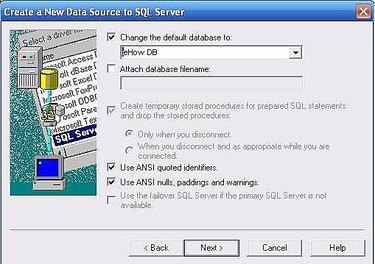
- If your SQL Server Database name appears in the "Change Default Database To:" drop-down, then click NEXT and go to step 13 below.
Otherwise, if your database does not appear, you must first Click on the box for "Change Default Database To:". Then, in the drop-down menu, select your SQL Server database name. Click on NEXT.
Step 8
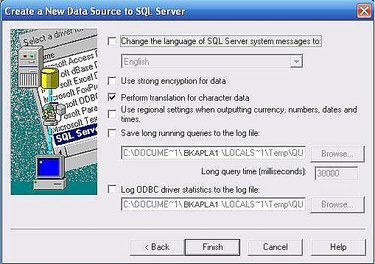
- In the next window, typically the default options should remain "as is" so do not change any options and click on the Finish button.
Step 9
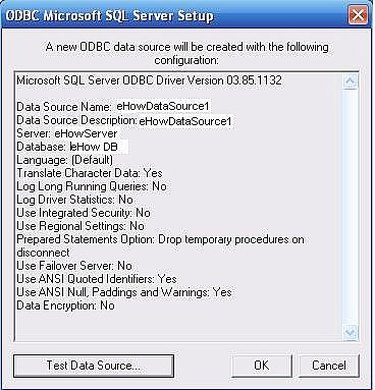
- In the ODBC Microsoft SQL Server Setup Window, click on the Test Data Source button to be sure that your connection settings are correct.
Step 10
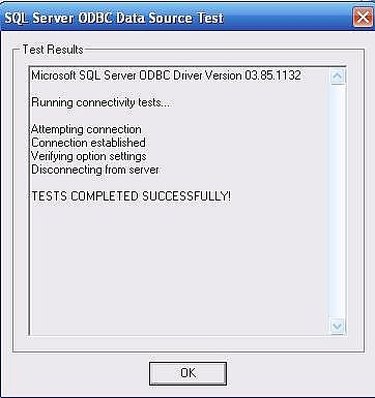
- If your settings are correct, you should see a message indicating that the "TESTS COMPLETED SUCCESSFULLY."
If the test failed, you'll need to click the BACK buttons to determine which setting is wrong and then repeat the above steps.
Step 11
CONGRATULATIONS!! You have successfully setup and created an ODBC connection for a SQL Server Database that can now be used to link tables within a MS Access application.
Video of the Day