If there are parts of a song that you really don't care to listen to, use iTunes to cut that track down to size. The iTunes Get Info window includes an option for cutting any amount of time from the beginning or end of each track. When you play the song in iTunes, it will omit the parts you trimmed without affecting the original file. If you want to use the changed file with another app, export the track from iTunes.
Cutting Track Times
Video of the Day
Step 1
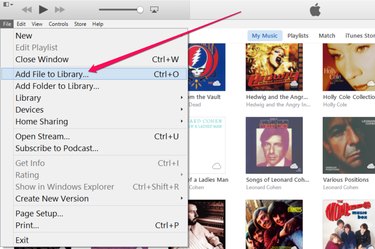
Import the music track to your iTunes library if it's not there already by pressing "Ctrl-O" in iTunes or by selecting "Add File to Library" from the File menu. In the navigation window that opens, select the song and click "Open." ITunes can import most music formats, including MP3, WAV and audio CD files.
Video of the Day
Step 2
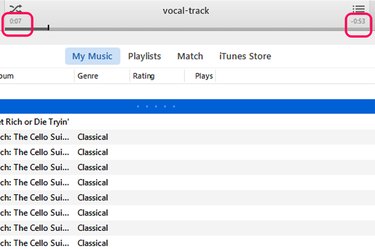
Play the song in iTunes. Jot down the beginning and end times of the part you want to keep. There are two timers at the top of the iTunes window. The timer on the left tells you how far you are into a song, while the one on the right tells you how much time is remaining.
Step 3
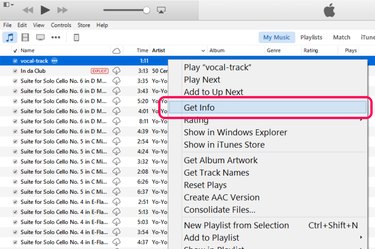
Right-click the song title and select "Get Info " to open the Information window. Click the "Options" tab.
Step 4
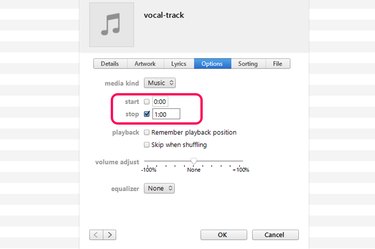
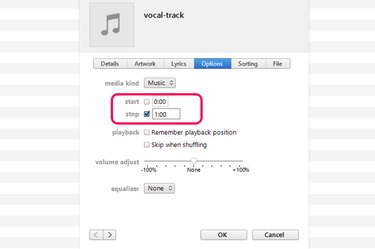
Click the "Start" and "Stop" check boxes and enter the new times. For example, if you want to skip the first 3.5 seconds, type "0:03.50" in the Start field. If you want the track to end at exactly 5 minutes, then type "5:00" in the Stop field. Click "OK" to save the change.
The track will still show the old time length in the iTunes library, but when you play the song, it will play only the time you specified.
Exporting the Track
Step 1
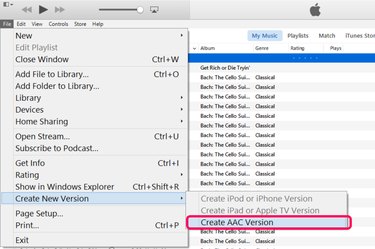
Right-click the song you trimmed in iTunes. Select "Create New Version" and click "Create AAC Version." This creates a copy of the file in M4A format, which is compatible with just about any music app you might have.
The duplicate track appears next to the original version in your iTunes library. The title is the same, however the track time is shorter.
Step 2
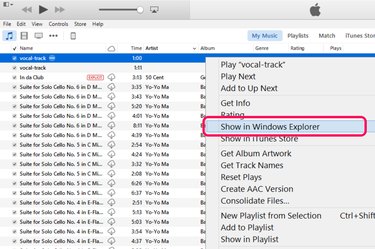
Right-click the duplicated track and select "Show in Windows Explorer." A File Explorer window opens the iTunes folder containing the file.
Step 3
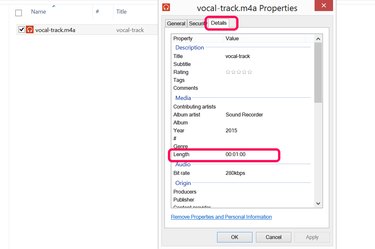
Right-click the file if you want to verify its track length. Select "Properties" and click the "Details" tab. Right-click the file to open it in another music app, or drag it into another folder as needed.