If you find you cannot adjust the volume on your computer, you may need to restore the volume icon to the Windows taskbar. Volume problems can also result from a disabled sound card or an outdated or corrupted driver. Restoring the volume on your computer requires a bit of troubleshooting, but you can definitely get it working again.
Step 1
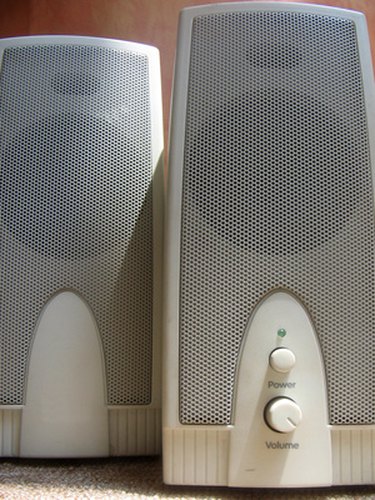
Check the back of your computer to make sure your speakers are properly attached. Verify the speakers are plugged into the wall outlet and receiving power. Ensure your speakers are turned on and that the volume dial is not turned all the way down.
Video of the Day
Step 2
Click on the Windows "Start" menu and select "Control Panel" if you cannot see the volume icon in your taskbar. Double-click on "Sounds and Audio Devices" in the "Control Panel" window to open the "Sounds and Audio Devices Properties" window. You may need to click the "Switch to Classic View" link on the left side of the "Control Panel" window if you do not see the icon for "Sounds and Audio Devices."
Step 3
Place a checkmark in the box next to "Place volume icon in the taskbar" by clicking in it. If the box already has a checkmark, click in it to remove the checkmark and then click it again to replace the checkmark. Verify that no checkmark appears in the "Mute" box. Click "Apply" and then "OK." The speaker icon should appear in your Windows taskbar next to the clock.
Step 4
Open the "Sounds and Audio Device Properties" screen from the Control Panel. Click on the "Hardware" tab and select your sound card. Click the "Troubleshoot…" button and follow the on-screen prompts to diagnose and repair your problem.
Step 5
Right-click on the "My Computer" icon on your desktop. Select "Properties" and choose the "Hardware" tab. Click on the "Device Manager" button. Click the plus sign next to "Sound, video and game controllers" and right-click on your sound card. Select "Update driver…" from the drop-down list and follow the on-screen directions. If the right-click menu has an option that reads "Enable," select it as this means your sound card is currently disabled.
Step 6
Reactivate Windows Audio Service if you still do not have sound on your computer. Click on the Windows "Start" button and select "Run." Type "services.msc" in the text box without the quotation marks and press "Enter." Double-click on "Windows Audio" in the "Services" screen that pops up after you press "Enter." Choose "Automatic" from the dropdown list next to "Startup type" and click the "Start" button under "Service status." Click "OK."
Video of the Day