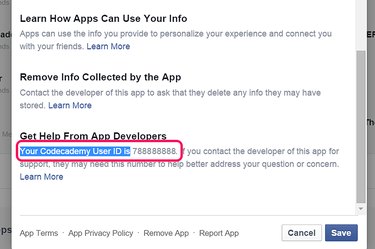
Every Facebook account has a unique ID number used for identification. One way to get your Facebook ID is from the Settings page of any Facebook app that you use. A second way is to edit the Web address, or URL, of a Facebook profile.
Finding Your Facebook ID in Settings
Video of the Day
Step 1
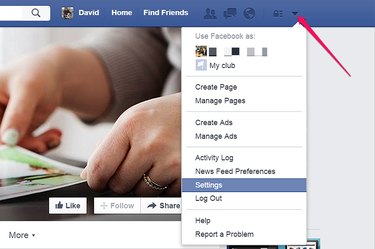
Log in to Facebook. Click the Arrow menu icon and select Settings.
Video of the Day
Step 2
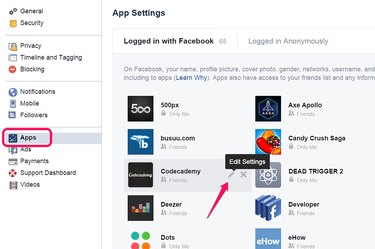
Click the Apps icon in the left menu. Hover the cursor over any app and then click the pencil-shaped Edit Settings icon that appears.
Step 3
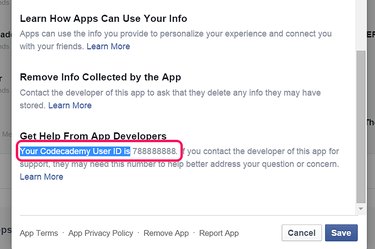
Scroll down to the Get Help From App Developers section. The number in the first sentence is your User ID for that app and your Facebook User ID.
Changing the Facebook URL
Step 1
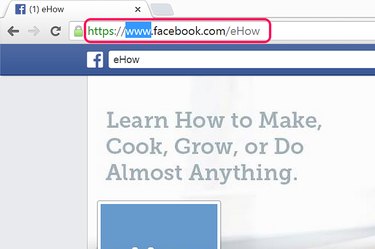
Log in to Facebook and go to any profile or page. To get to your own profile, click your profile picture beside the Facebook search field. Drag the cursor over www in the URL to highlight it.
Step 2
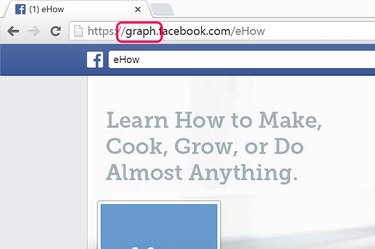
Type graph over the www to change the URL. For example, if the URL was "http://www.facebook.com/myname," it should now read "http://graph.facebook.com/myname."
Step 3
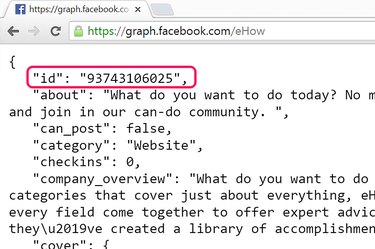
Press Enter. The Facebook ID is the number displayed in quotation marks in the first line.