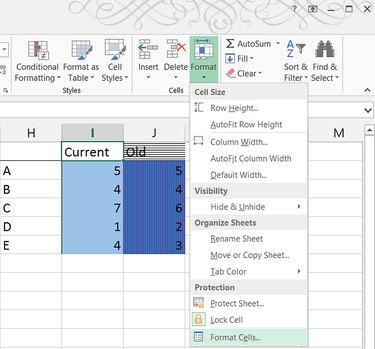
To change the background color or pattern of cells on an Excel 2013 or 2010 spreadsheet, set the Fill options in the Format Cells window. These options include several pattern styles and customizable colors for both the cell backgrounds and pattern lines. Neither background colors nor patterns affect the data in a spreadsheet, but you can search by colors and patterns to find cells with specific styles.
Step 1
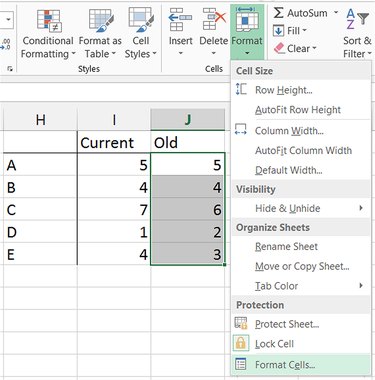
Select one or more cells on a spreadsheet, click "Format" on the Home tab and choose "Format Cells." Alternatively, press "Ctrl-1" as a shortcut to reach the Format Cells window.
Video of the Day
Step 2
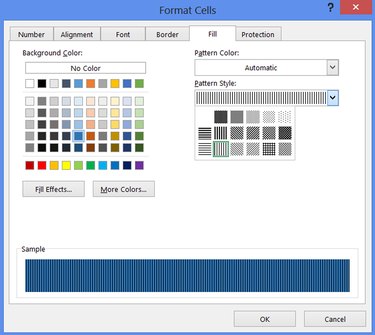
Switch to the "Fill" tab and pick a background color, or leave the option set to "No Color" to add a pattern without a background color. To set the color without using a pattern, click "OK." Otherwise, open the "Pattern Style" menu and pick a pattern.
Step 3
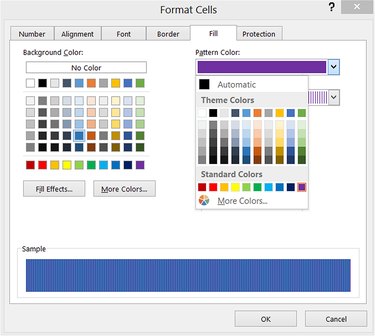
Open the "Pattern Color" menu and choose a color for the pattern's lines. On some patterns, including "75% Gray" and "Thick Diagonal Crosshatch," the pattern color completely overwhelms the background color. Check the Sample area to see how the background color, pattern and pattern color work together.
Step 4
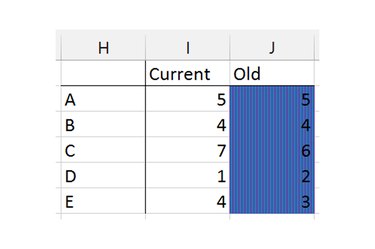
Click "OK" to apply the pattern and colors to the selected cells.
Video of the Day